Documents and Transactions
In short
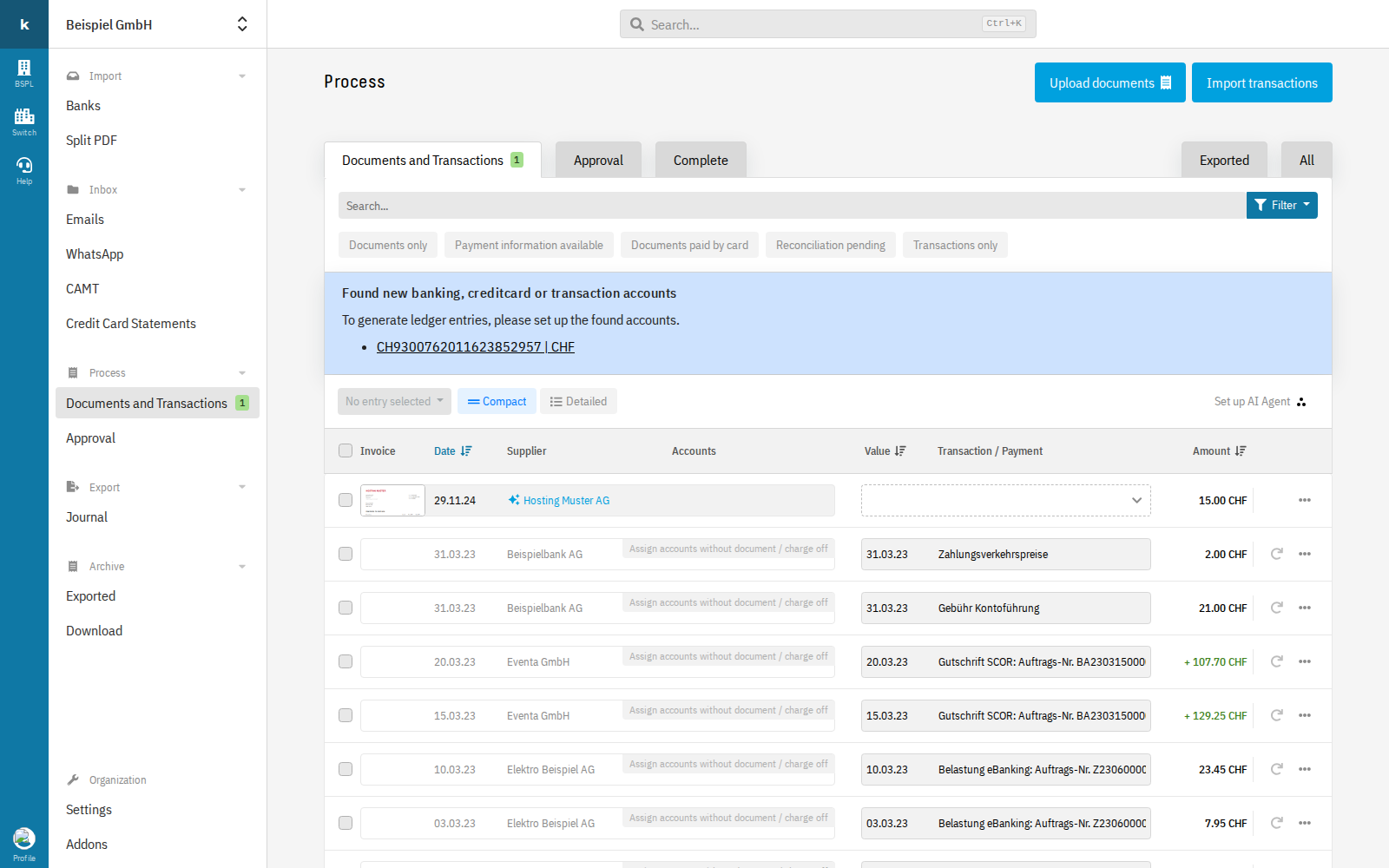
Section titled “In short”“Documents and Transactions” is Kontera’s work list. Uploaded documents, imported transactions and the suggestions of the AI Agent stay here until you have reviewed, posted and reconciled them. Finished entries move to “Complete” on their own.
Where to find it
Section titled “Where to find it”– the number next to the entry shows how many entries are waiting for you. After you log in, Kontera opens this view.
How it works
Section titled “How it works”-
Upload documents or import transactions
“Upload documents” takes PDF and image files, “Import transactions” reads bank and credit card movements from a file. Documents that arrive by email, WhatsApp or from the bexio Inbox, and transactions from a banking connection, show up here on their own.
-
Review the suggestion
Kontera reads the contact, amount, invoice date and invoice number from every document and suggests an account and a tax rate. Entries marked in blue with a star come from the AI Agent. If the suggestion fits, accept it with “Apply suggestion”; the document then carries the status “Posted using AI”. “Edit” opens the document so you can adjust the account assignment yourself.
-
Reconcile or set the payment type
In the “Transaction / Payment” column Kontera proposes the matching transaction. If there is none, you decide how the document is paid: as a payment advise, as a private expense of an employee, as already paid or without a payment. A transaction without a document is posted with “Assign accounts without document / charge off”.
-
Automate what repeats
If a transaction comes in every month, create a posting rule straight from the row. With “Automated posting” Kontera posts future matches without your click. Without that option Kontera shows the recognized rule, and you apply it with “Apply posting rule”.
-
Export
Fully posted and reconciled entries appear in the “Complete” tab. From there you export them to your accounting system.
Options
Section titled “Options”
- Documents and Transactions – everything that still needs attention.
- Approval – documents waiting for an approval.
- Complete – finished entries that are not exported yet.
- Exported – entries that are already in the accounting system.
- All – the complete list regardless of status.
Quick filters and filters
Section titled “Quick filters and filters”
The quick filters narrow the list with one click. “Filter” combines further criteria: date and value date, amount, account or credit card, account assignment, posting type, payment type, document tags, transaction type and transaction import, credit card statement, approver, and “Show ignored” and “Show complete”. The search finds documents and transactions by contact, text and amount.
“Compact” and “Detailed” view
Section titled ““Compact” and “Detailed” view”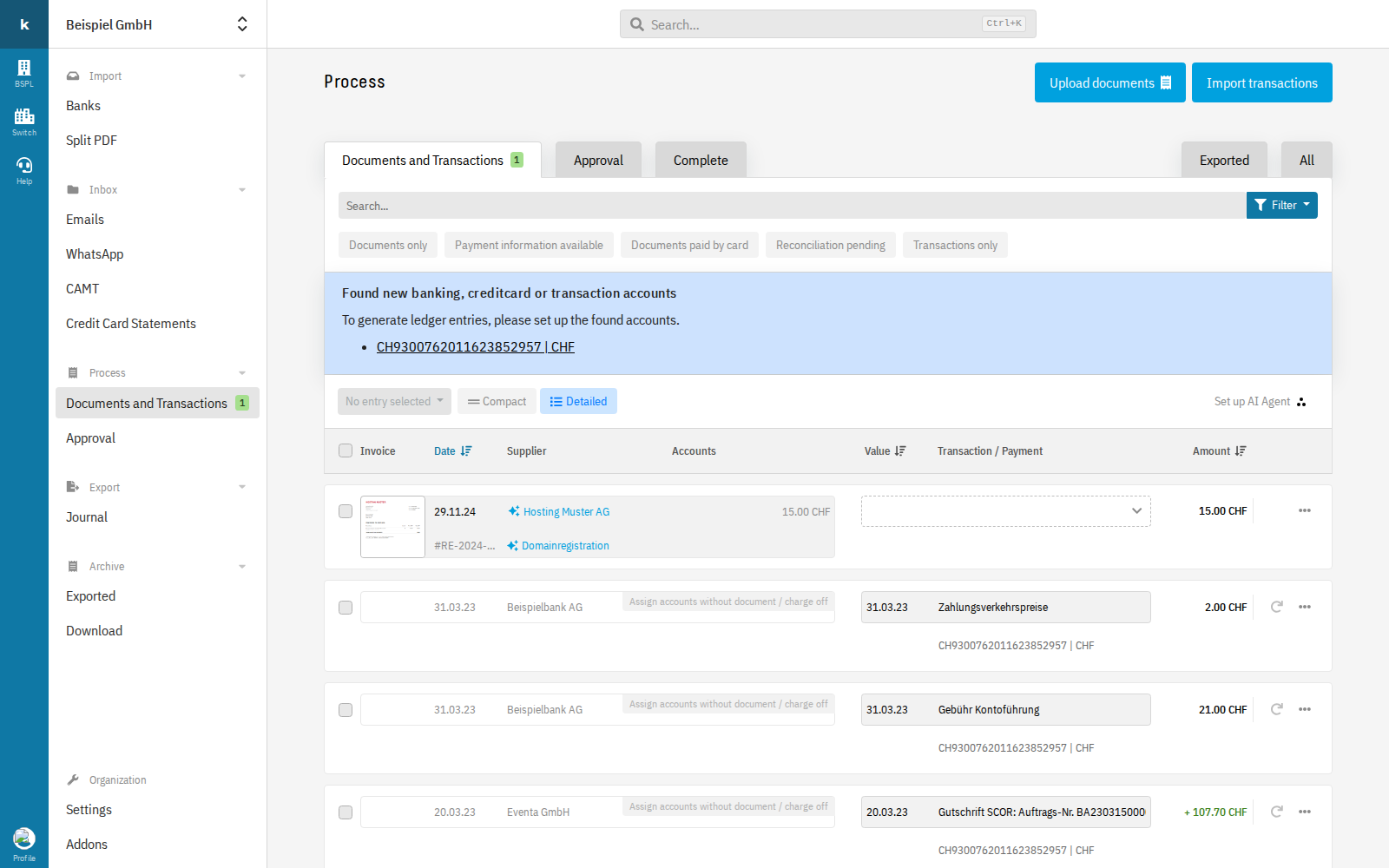
“Compact” shows one row per entry. “Detailed” adds the invoice number, the individual account assignment lines with their amounts and, for transactions, the account with its IBAN. That lets you check a suggestion without opening the document.
Several entries at once
Section titled “Several entries at once”Select several rows and the “Entries…” button offers actions for the whole selection: approve and deny, ignore, merge, change posting type, split, export and delete.
New accounts
Section titled “New accounts”If imported transactions contain a bank, credit card or transaction account that Kontera does not know yet, a notice lists the account. Set it up through the link so that Kontera can generate ledger entries from it.