Credit Card Statements
In short
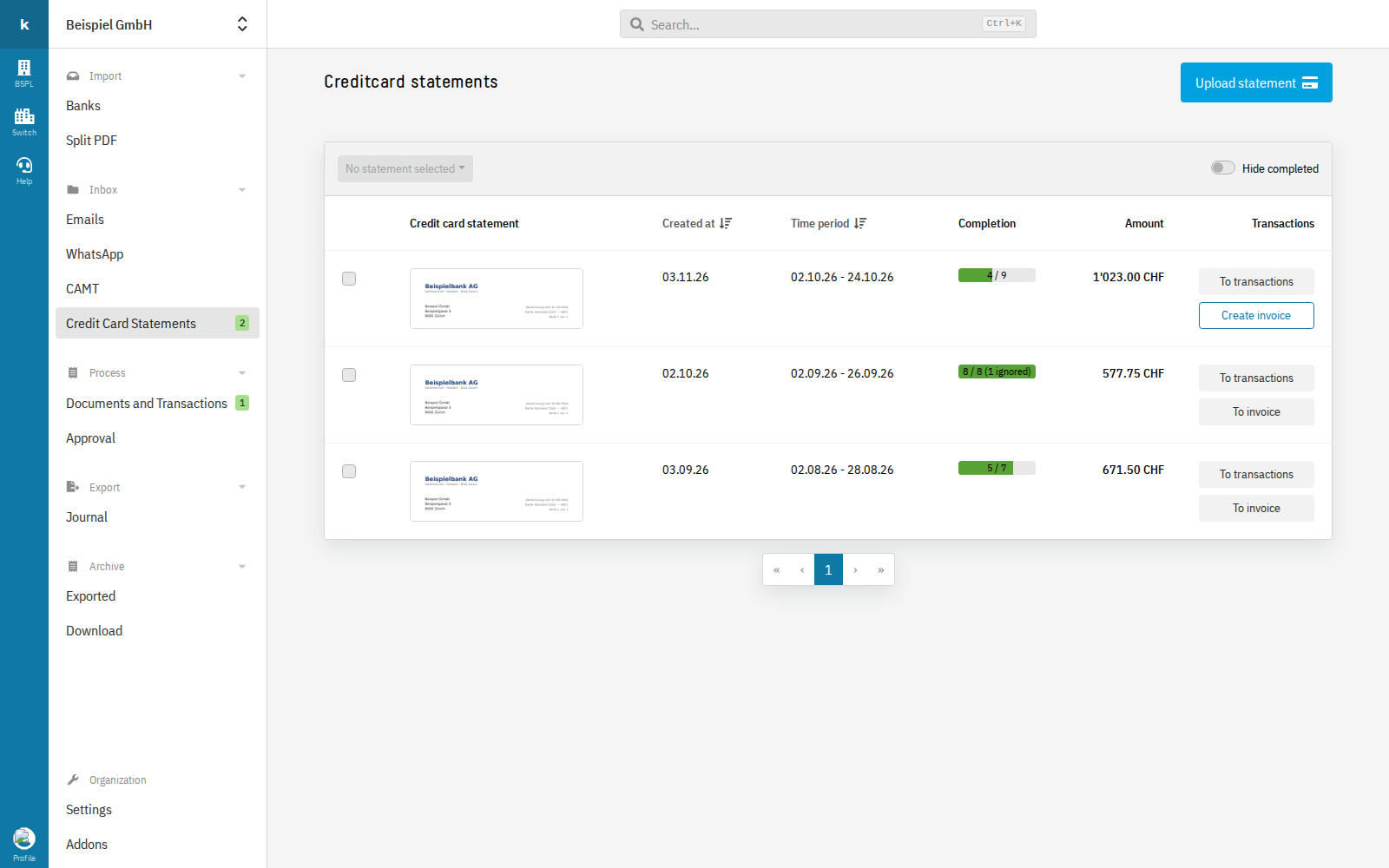
Section titled “In short”If you receive your credit card statement as a PDF or on paper, you upload it here. Kontera reads every line of the statement as a transaction and makes it available under “Documents and Transactions”, where you reconcile it with documents or assign accounts without a document. For each statement, the list shows how many transactions are already done.
Where to find it
Section titled “Where to find it”lists all statements of your organization, most recently added first. The number next to the entry is the count of statements with open transactions: not reconciled, not posted without a document and not ignored.
The entry appears once the “Creditcard Statements” addon is switched on: under in the “Creditcards” section.
How it works
Section titled “How it works”-
Upload a statement
Click “Upload statement” or drag the file onto the list. Kontera accepts PDF, JPG and PNG files. While Kontera reads the statement, the row shows the file name; afterwards the statement appears with “Time period”, “Completion” and “Amount”.
If Kontera recognizes a credit card statement in a document – for example uploaded under or sent by email to the inbox address – Kontera adds it here as well, already linked to that document.
-
Check the transactions
Every line of the statement becomes a transaction with date, text, amount and, for purchases in a foreign currency, the original amount. Kontera assigns it to the credit card shown on the statement. If Kontera does not know the card yet, Kontera creates it, and “Documents and Transactions” shows the notice “Found new banking, creditcard or transaction accounts”. Set up the card through the link so that Kontera can create postings from its transactions.
-
Go to the transactions
“To transactions” opens , filtered by this statement. The “CC Statement: …” filter and “Show complete” are set, so you also see the transactions that are already reconciled. On the left are the details of the statement and the statement itself as a PDF.
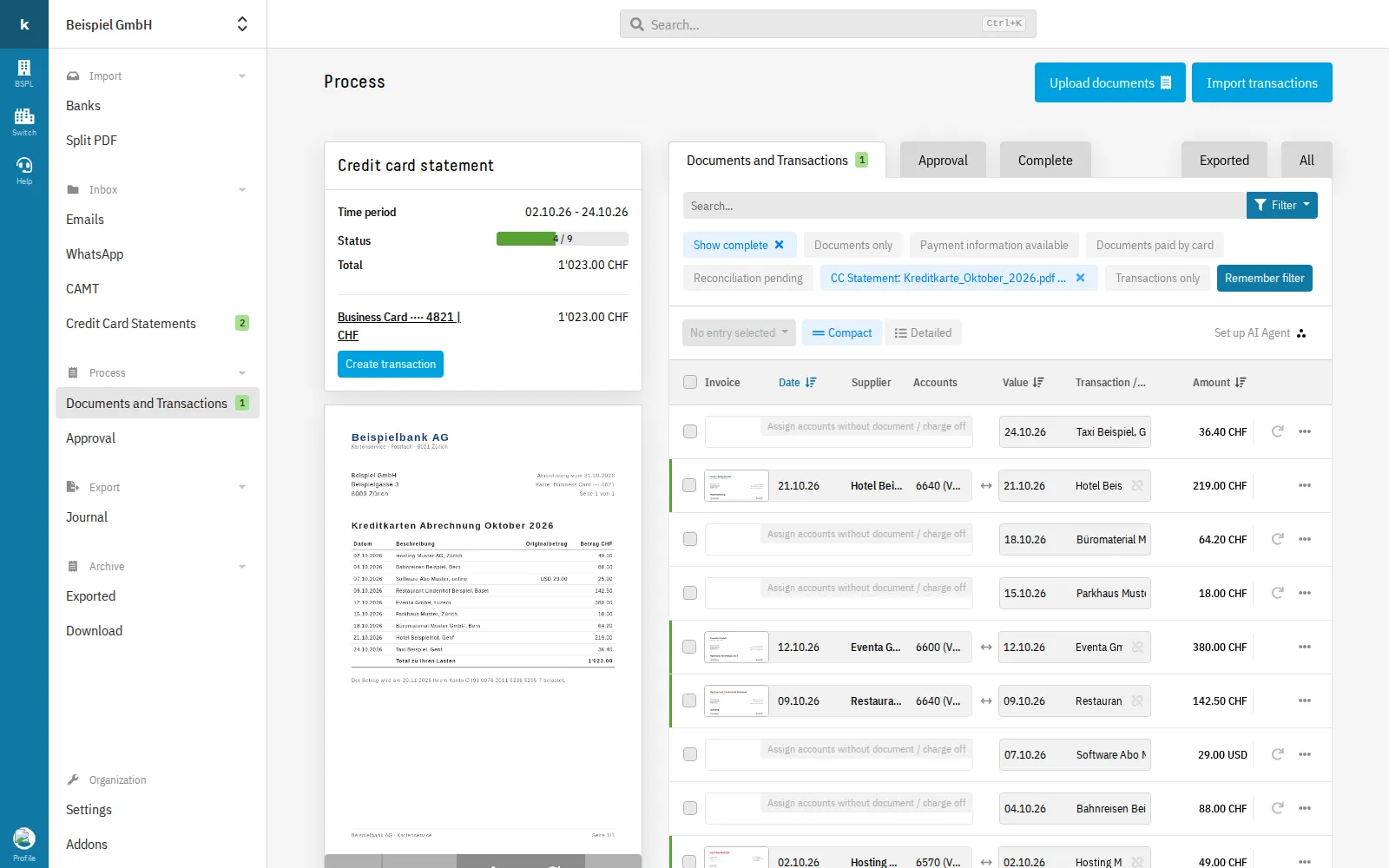
Reconciled transactions stand next to their document, open transactions show Assign accounts without document / charge off. Clicking the credit card name in the card on the left narrows the list to that card. -
Reconcile or assign accounts without a document
Kontera looks for the matching document for each transaction and checks your posting rules. You reconcile the remaining transactions with the matching document once it is in Kontera, or assign accounts with “Assign accounts without document / charge off”. Transactions that should not be posted, you ignore. With every transaction that is reconciled, posted without a document or ignored, the “Completion” of the statement grows.
-
Create a document for the statement
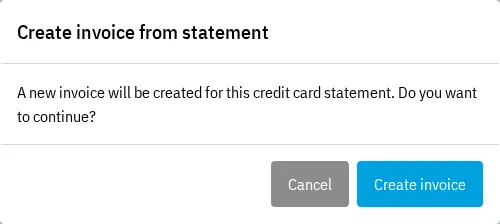
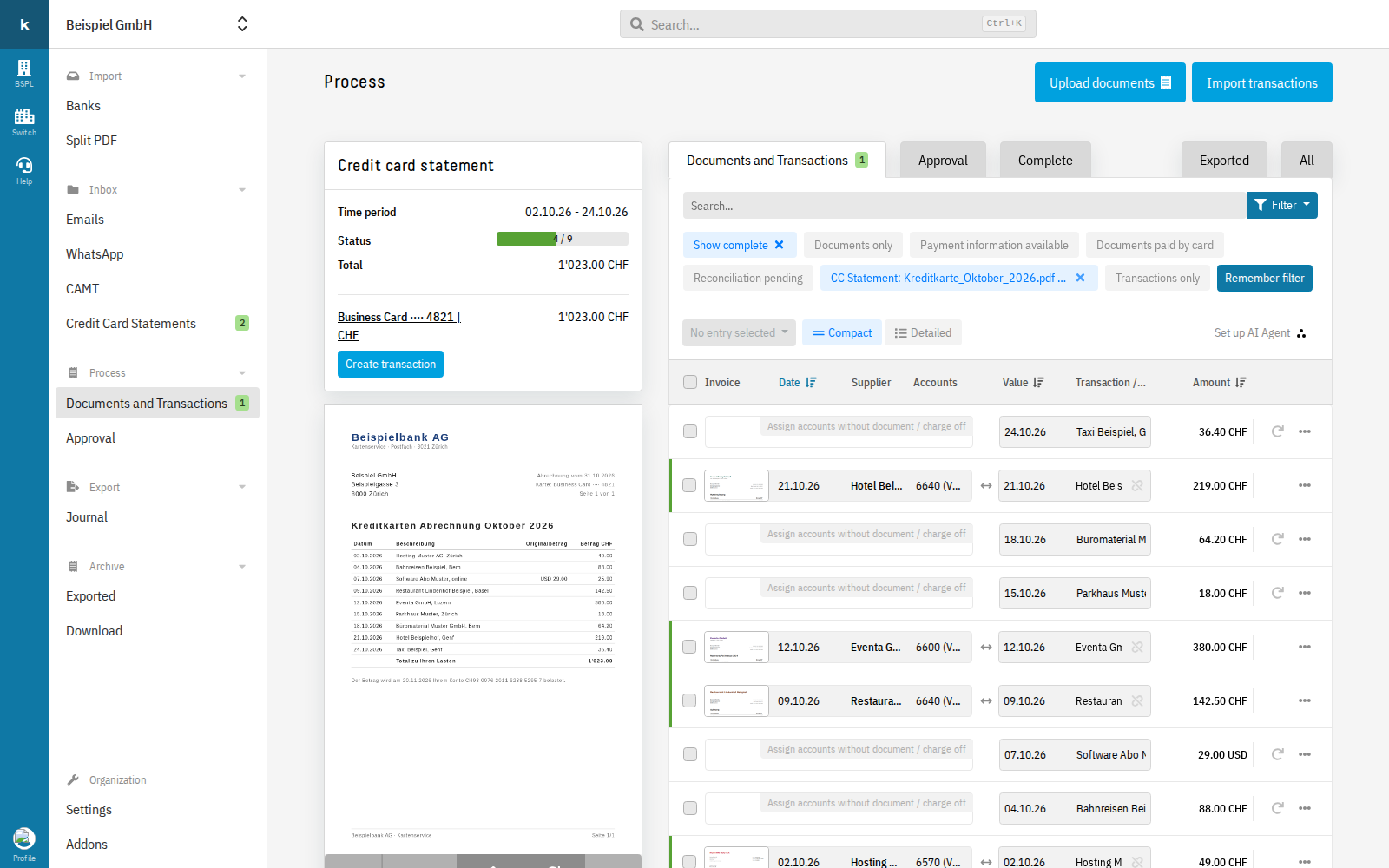
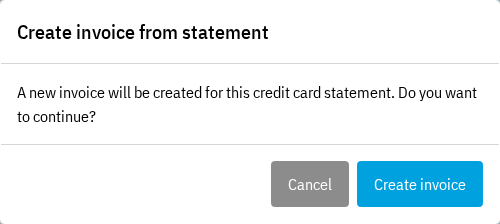
If the statement has no document yet, click “Create invoice” and confirm with “Create invoice”. Kontera creates a document with the statement as its file and one line item per credit card for its total, assigned to the transit account set for the card. Afterwards, “To invoice” leads to this document.
Options
Section titled “Options”Hide completed statements
Section titled “Hide completed statements”The “Hide completed” switch hides statements whose transactions are all done. Kontera remembers the setting for your next visit.
Clicking the column titles “Created at” or “Time period” sorts the list by the date the statement was added or by the date of the statement.
Delete a statement
Section titled “Delete a statement”Select a single statement with its checkbox, open the selection at the top left and click “Delete”. After you confirm, Kontera removes the statement with all of its transactions; reconciled documents lose the link to the transaction. Documents that are already exported are not affected, and a statement with exported transactions cannot be deleted. Deleting cannot be undone.