WhatsApp Inbox
In short
Section titled “In short”With the WhatsApp Inbox your employees send receipts and documents as a photo or PDF straight from WhatsApp to Kontera. Every attachment becomes a document that Kontera analyzes like an uploaded one and makes ready for account assignment. The text sent with the message stays with the document and serves as a hint for the account assignment.
Where to find it
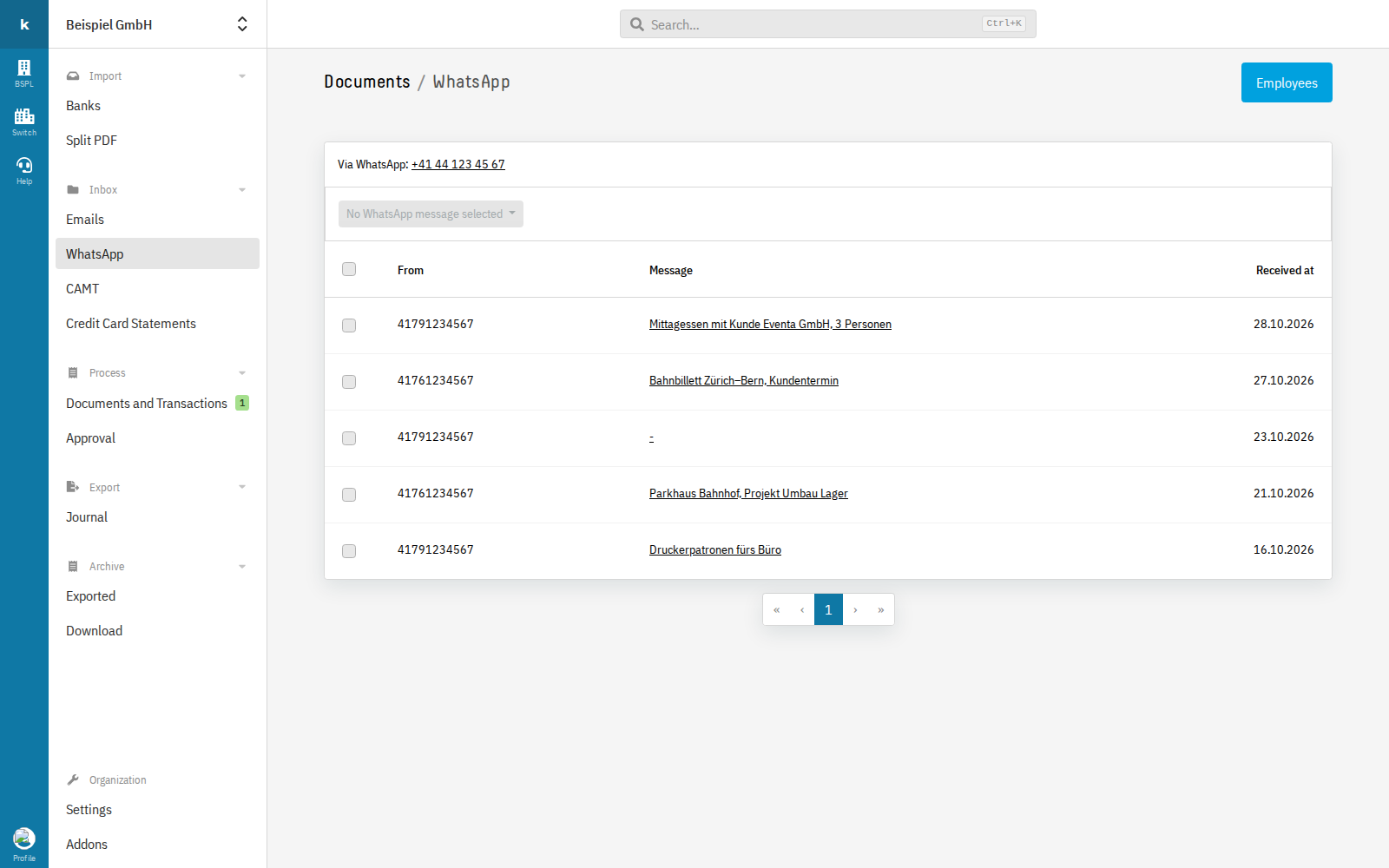
Section titled “Where to find it”lists every WhatsApp message Kontera received for your organization, newest first. The number you send documents to is shown above the list. The WhatsApp Inbox is an addon: switch on “WhatsApp Inbox” in the “Inbox” group under . It requires the “Private employee expenses” addon.
If your inbox has no “WhatsApp” entry, open the “WhatsApp” tab under . It shows the number for your documents, and the card leads to the list of messages.
How it works
Section titled “How it works”-
Add the mobile number
Kontera recognizes the sender by their mobile number. Under “Settings → Employees”, or through the “Employees” button, enter the “Phone” of every person who should send documents. A number can be stored for only one employee in Kontera.
-
Send a document by WhatsApp
The employee sends a photo or a PDF file to the number shown above the list. JPEG, PNG, HEIC, HEIF and PDF are supported. Whatever they write as the caption, such as the occasion or the project, Kontera stores as the “Message”. Messages without an attachment are not kept.
-
Kontera creates the document
Kontera creates a document from the attachment and analyzes it. The WhatsApp message is marked as read once the document has been created. If the file cannot be processed, the employee gets a reply saying the document could not be processed. The document appears in .
-
Check the message
In the list under a click opens a message. The detail view shows when it was received, who sent it, the “Attachments” and the full text.
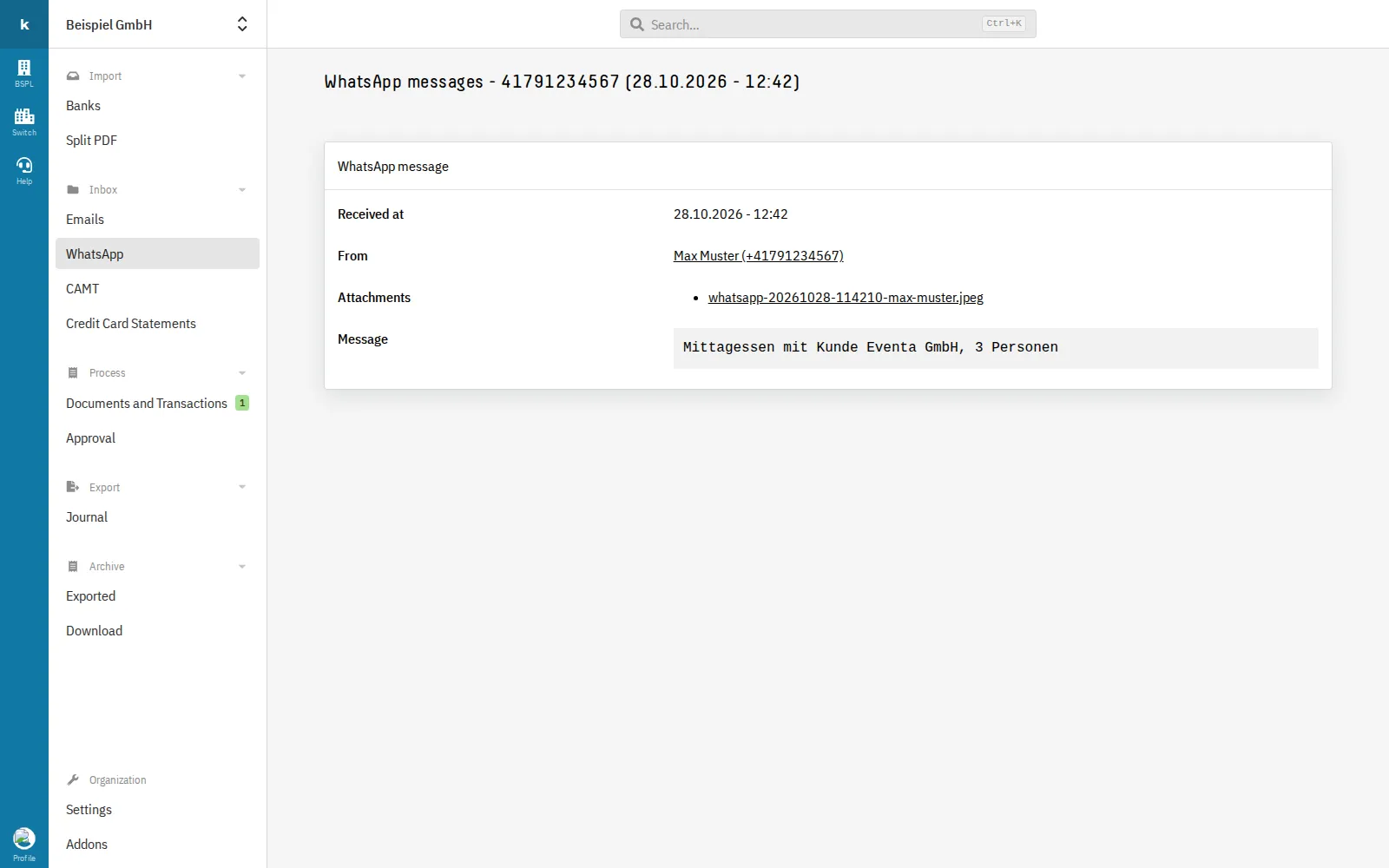
The sender leads to the employee, each attachment to its file.
Options
Section titled “Options”Message in the document
Section titled “Message in the document”The document shows the “WhatsApp message” card with the sender and the text. If the “Additional posting text” field is empty, Kontera offers the text of the message below it; one click sets it as the posting text. When posting using AI, the message is used as an additional hint, for example a note such as “Lunch with client”.
Documents as employee expenses
Section titled “Documents as employee expenses”If “Tag invoices via inbox as private expense” is enabled for the employee and an “Employee Transitaccount” is selected, Kontera creates their documents directly as employee expenses.
Delete messages
Section titled “Delete messages”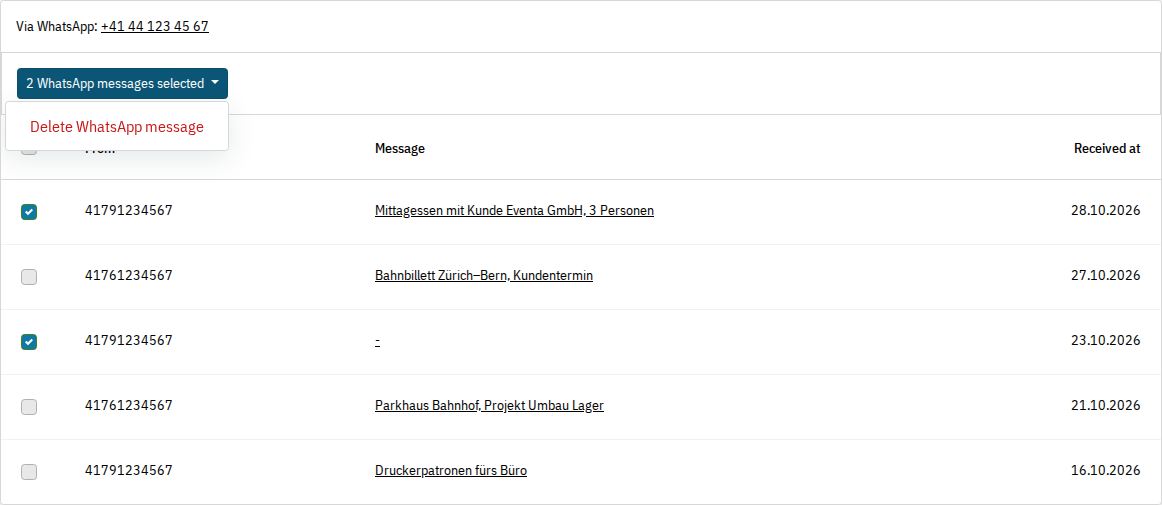
Select one or more messages with the checkboxes and choose “Delete WhatsApp message” in the action menu. After the confirmation the messages are deleted for good. The documents created from them stay.
Unregister a number
Section titled “Unregister a number”If the employee writes “stop” or “abmelden” to the Kontera number, Kontera removes their mobile number from the organization and confirms this by WhatsApp. The number can then be stored for another organization.
Replies to unknown numbers
Section titled “Replies to unknown numbers”If someone sends from a number that is not stored for any employee, they get a reply saying the number is not known. If the WhatsApp Inbox is not switched on for the organization, the reply says so. In both cases no document is created.