Journal
In short
Section titled “In short”This is where your finished postings go to the accounting system. The page lists every document that is posted, reconciled and, where required, approved. Before you export, a summary shows which accounts are posted with which amounts. Depending on the accounting system, Kontera transfers the documents directly or creates a file that you import into your accounting.
Where to find it
Section titled “Where to find it”– the entry is named after the connected accounting system: “Export to bexio”, “Export to Infoniqa” (Infoniqa via Albatross API), “Export for Infoniqa” (Infoniqa ONE 50 TAF), “Export for Abacus”, or “Journal” for all other systems such as Topal, Banana Accounting, CSV and Universal Accounting. The number next to the entry shows how many postings are ready for export.
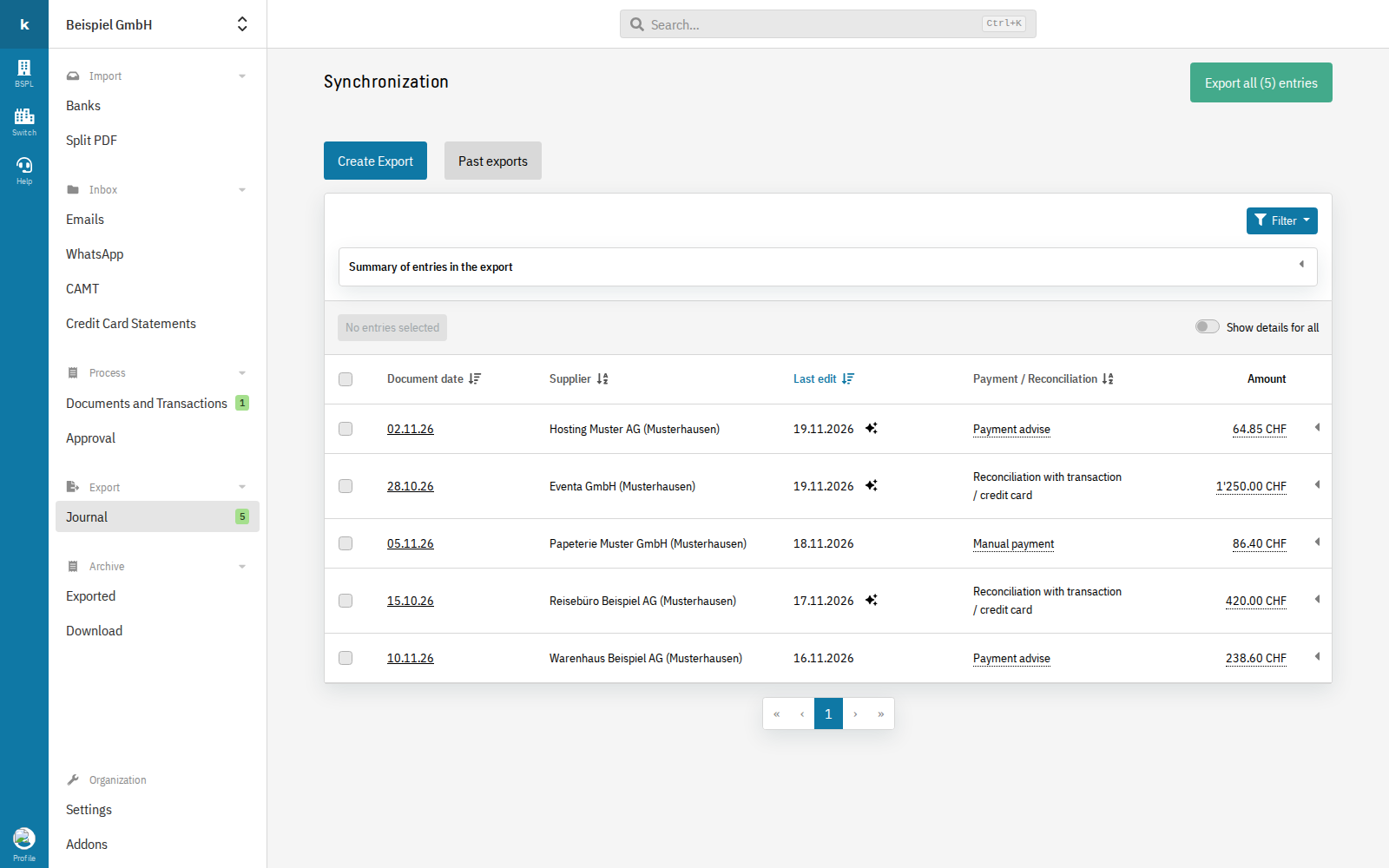
For accounting systems with a file export, the “Synchronization” page has two tabs: “Create Export” with the postings that are not exported yet, and “Past exports” with the previous exports.
How it works
Section titled “How it works”-
Review the postings
“Create Export” lists every saved document that is not exported yet. Documents with a pending approval only appear once they are approved; documents in a running export do not appear. The star icon next to “Last edit” marks documents with the status “Posted using AI”. Click the invoice date to open the document. The arrow at the end of a row, or “Show details for all”, shows the files and the account assignment right in the list.
-
Narrow down the selection
Use “Filter” to limit the list to a period, an account or a credit card statement (see Options). To export individual documents only, select them with the checkboxes.
-
Check the summary
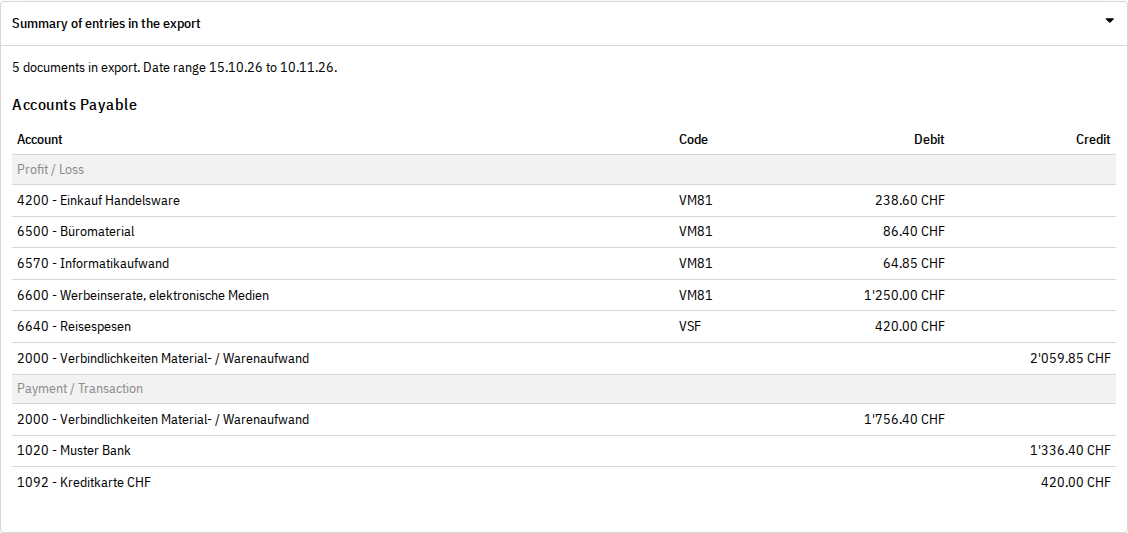
Click “Summary of entries in the export” to expand the posting preview: the number of postings, the posting period and, per posting type, the accounts with tax code, debit and credit. The summary follows the filters and your selection.
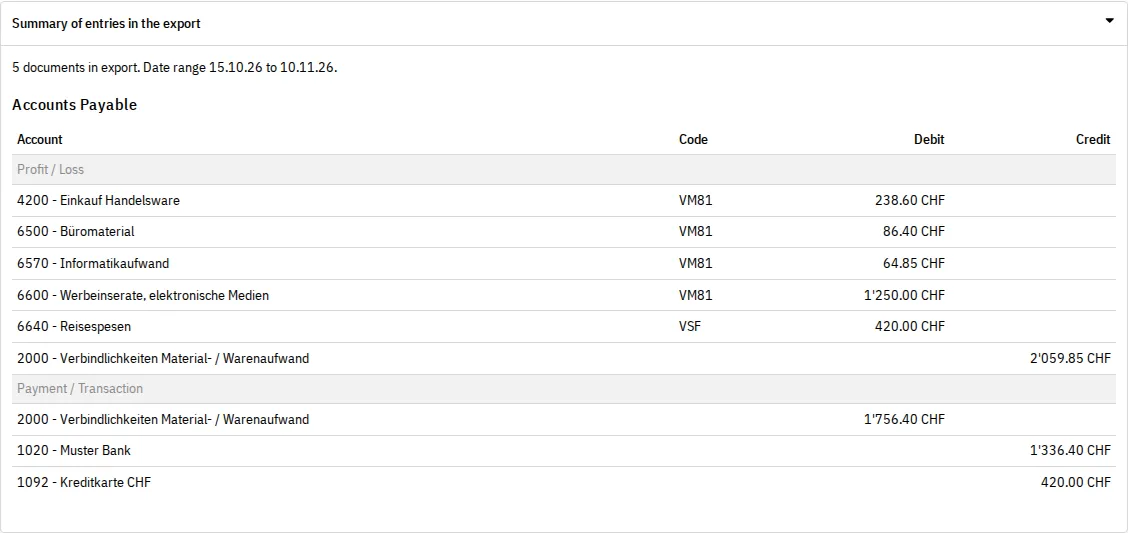
Per posting type, the accounts are grouped by part of the posting, such as "Profit / Loss" and "Payment / Transaction". This shows before the export whether an account is missing or an amount is off. -
Start the export
The button at the top right exports all postings of the filtered list; the button above the list exports only the selected ones. The label depends on the accounting system, for example “Export all (…) entries”, “Export all (…) invoices to bexio” or “Export all ledger entries for Abacus”.
- File export (Infoniqa ONE 50 TAF, Abacus, Topal, Banana Accounting, CSV, Universal Accounting): when you export all postings or more than 25 selected ones, confirm in the “Prepare export” window with “Confirm”. Kontera creates the export in the background and opens “Past exports”, where the new export is highlighted. An export of all postings contains up to 1,000 documents.
- Direct transfer (bexio, Infoniqa via Albatross API): Kontera transfers the documents one by one to the accounting system and shows the progress. “Export all (…) invoices to bexio” or “Export all (…) invoices to Infoniqa ONE 50” transfers up to 100 documents per click. The expanded row says what is created in the accounting system, for example “A purchase bill is created for this invoice.” for bexio or “Open items are created for this invoice.” for Infoniqa.
-
Check the result
Documents that were exported successfully get the status “Exported” and leave the list. For a file export, get the file under “Past exports” with “Download” and import it into your accounting system; that is also where you see whether individual documents were not exported. With a direct transfer, documents with an error stay in the list and Kontera shows the reason (see Export errors).
Options
Section titled “Options”Filter
Section titled “Filter”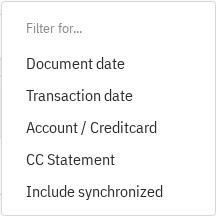
- Document date and Transaction date – filter by invoice date or transaction date to export only postings from a period, for example a month or a quarter.
- Account / Creditcard – only documents reconciled with a transaction of this account or credit card.
- CC Statement – only the documents of one credit card statement.
- Include synchronized – file export only: adds documents that are already exported to the list, for example to export a period again.
The active filters also apply to the button at the top right: it exports exactly the filtered postings.
Past exports
Section titled “Past exports”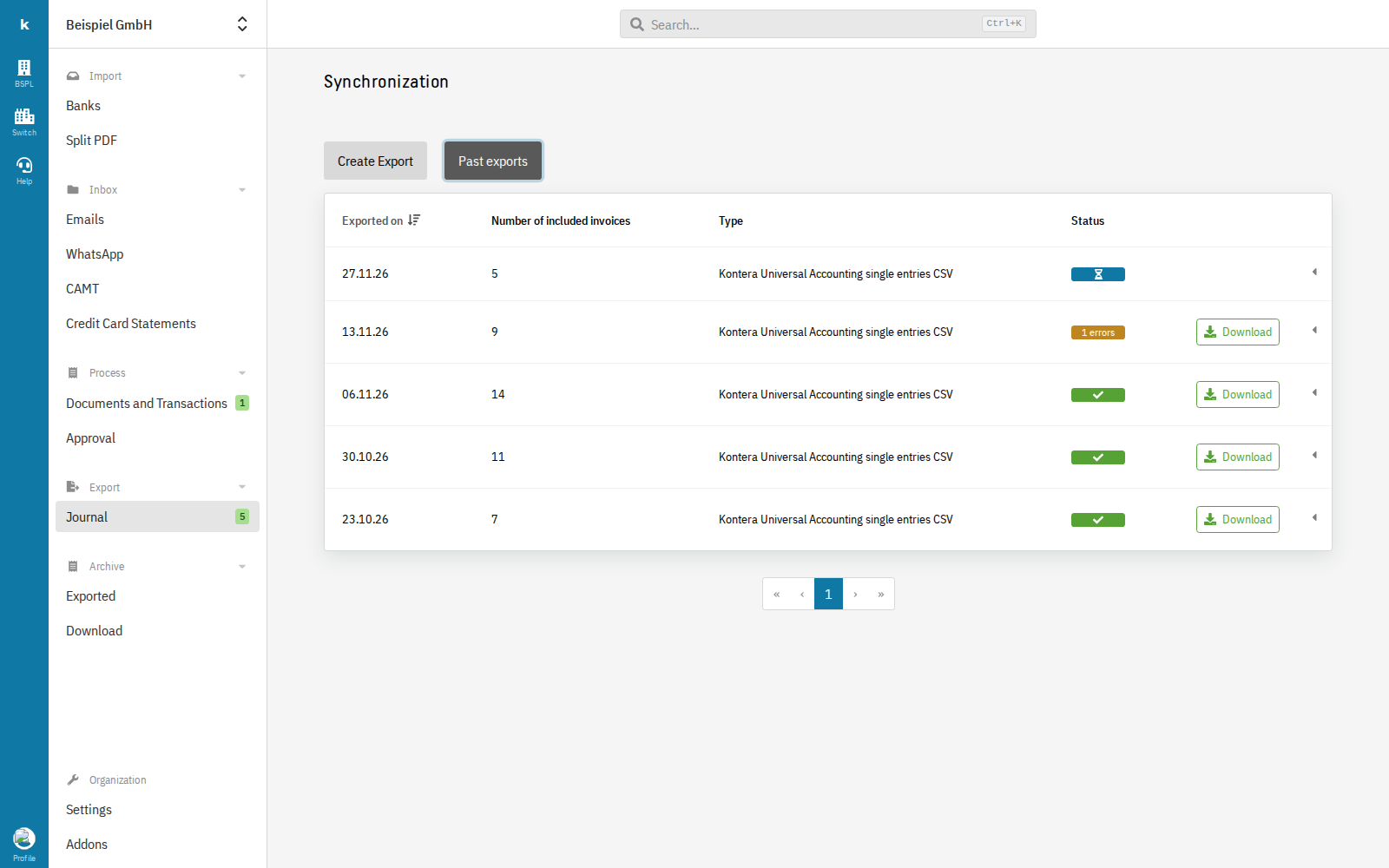
The tab lists the exports with “Exported on”, “Number of included invoices”, the file format under “Type”, and the “Status”: an hourglass for a waiting export, a progress bar while it is processed, a check mark for a finished export and an error count when individual documents were not exported. While an export runs, its row updates on its own.
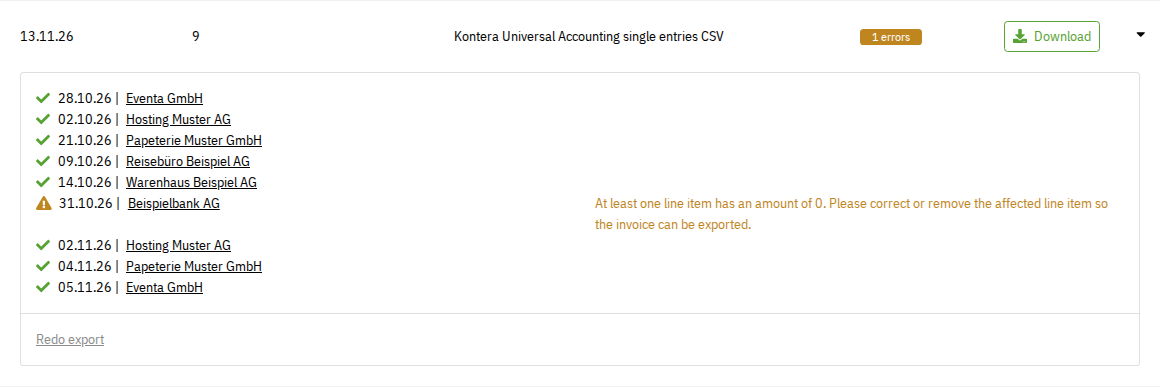
The arrow at the end of a row expands an export and shows each included document with invoice date and contact.
- Redo export creates a new export with the same documents, for example when you need the file again. Documents deleted in the meantime are skipped.
- Split export by month (Abacus only) splits the file of an export into one file per month, which you download separately.
Export errors
Section titled “Export errors”If Kontera cannot create the postings for a document, its row in “Create Export” is marked yellow and cannot be selected; the expanded row gives the reason. Examples are a line item with an amount of 0 or a tax rate that is not valid on the posting date. Once you correct the document, it is ready for export again.
- File export: if a document was not exported, the reason is shown under “Past exports” next to the document in the expanded export. For messages from the accounting system, a link leads to the audit log with the exact wording.
- Direct transfer: documents that were not transferred are marked red in the list, with the reason in the expanded row. “Hide errors and reload” hides the messages and reloads the list.
Universal Accounting
Section titled “Universal Accounting”With Universal Accounting you get the postings as a CSV or JSON file in an open format described under Universal Accounting. With the “Kontera Universal Accounting collective entries JSON” format, Kontera can also send each export to your system by webhook.