Split PDF
In short
Section titled “In short”“Split PDF” separates a PDF that contains several documents into individual documents. This lets you scan a whole stack of documents or credit card statements at once. Kontera AI marks the first page of each document; you check the suggestion, adjust it if needed and upload the documents.
Where to find it
Section titled “Where to find it”opens the page for uploading and splitting. The entry appears once the “PDF Splitter” addon is switched on: under in the “Tools and Helpers” section.
How it works
Section titled “How it works”-
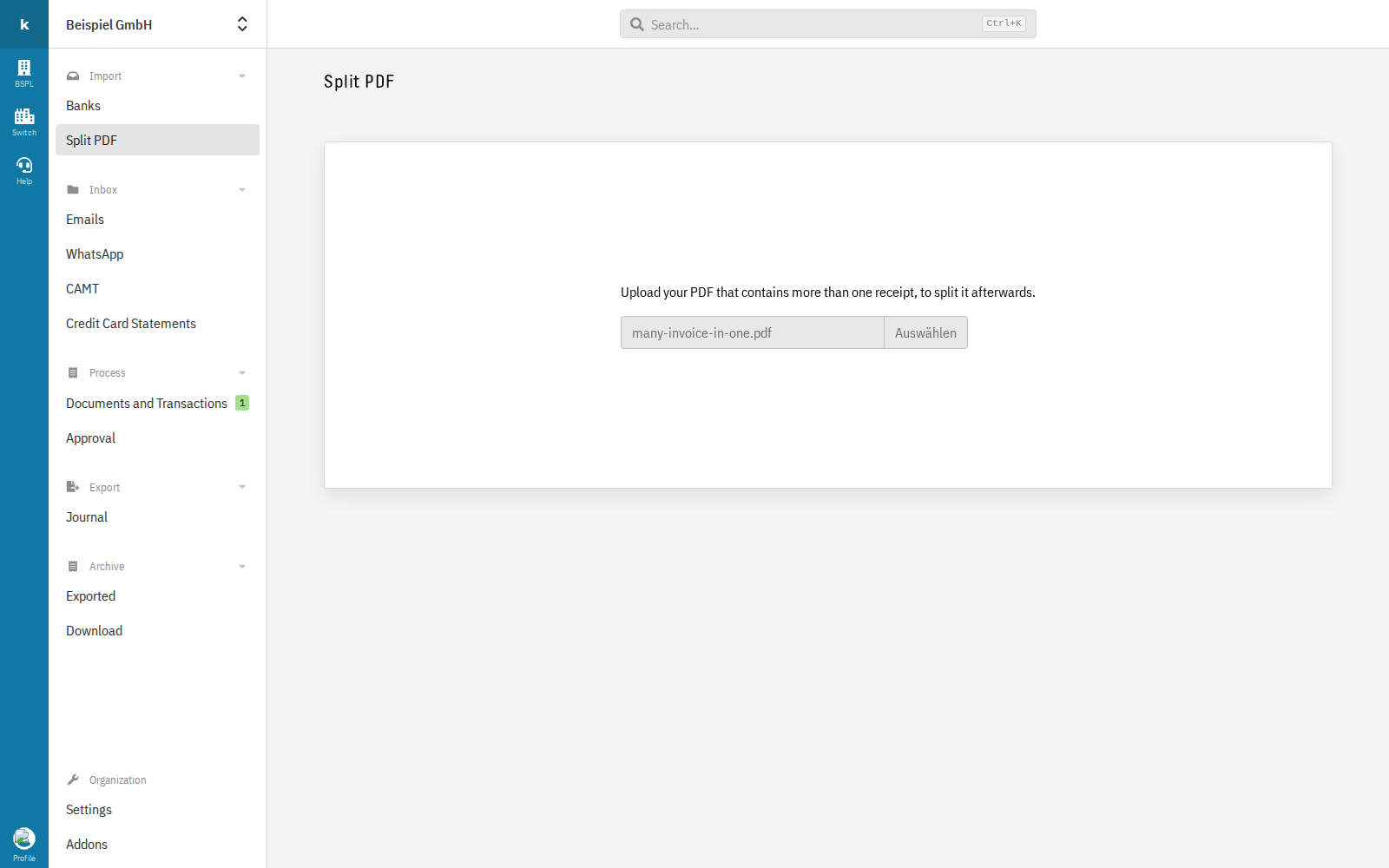
Upload the PDF
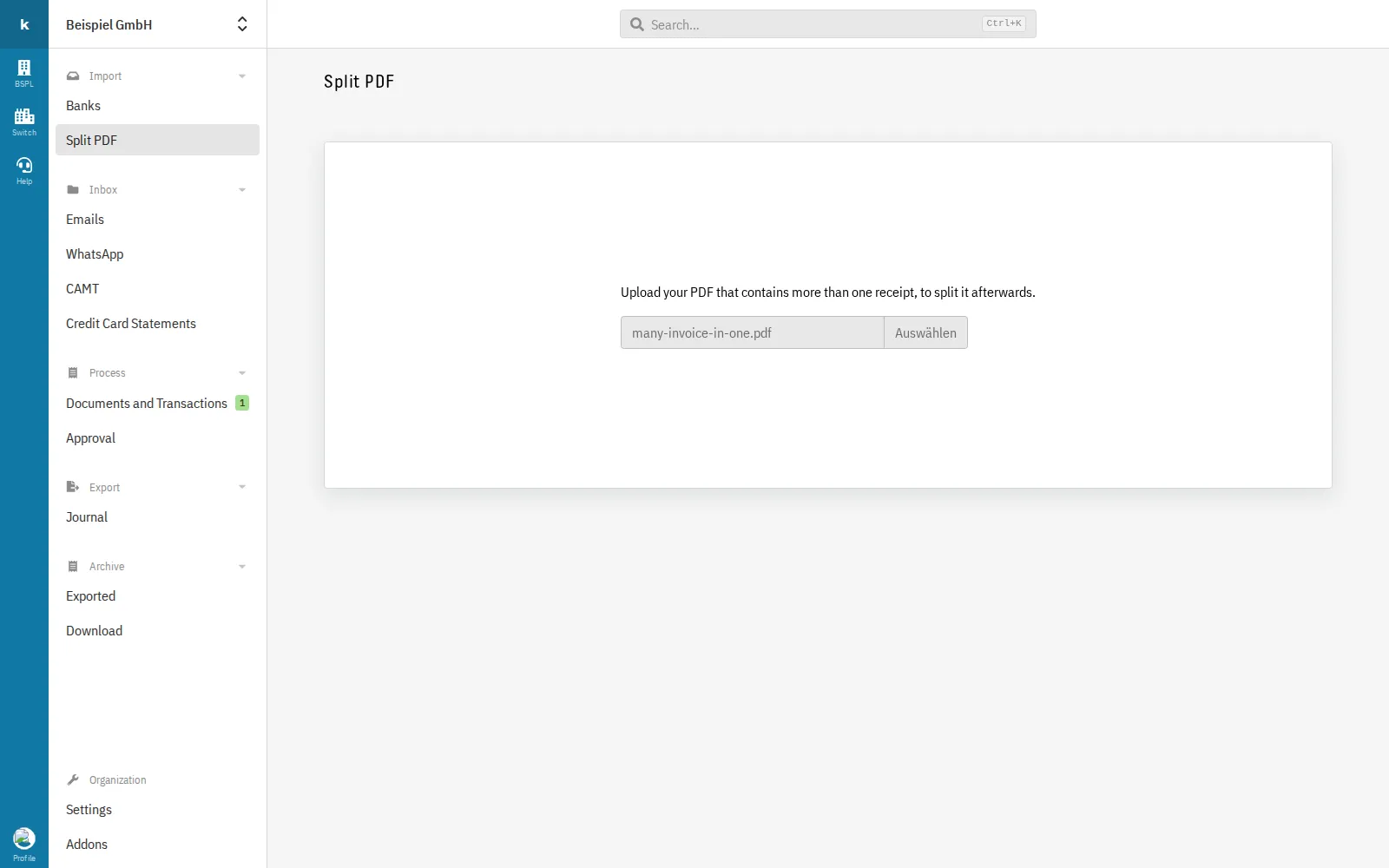
On “Split PDF”, choose a PDF that contains several documents. Kontera uploads the file and shows a preview of every page.
-
Check the suggestion from Kontera AI
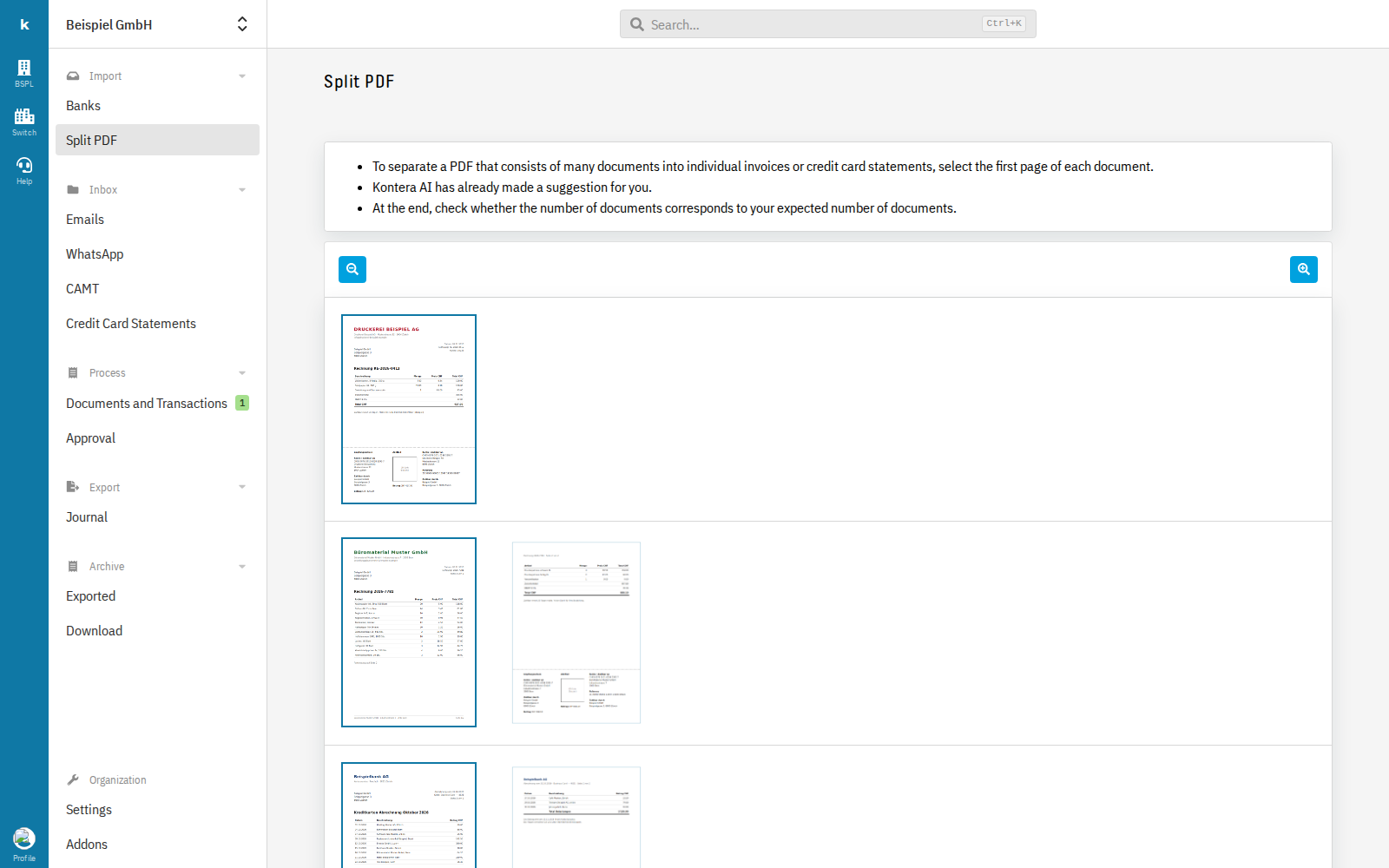
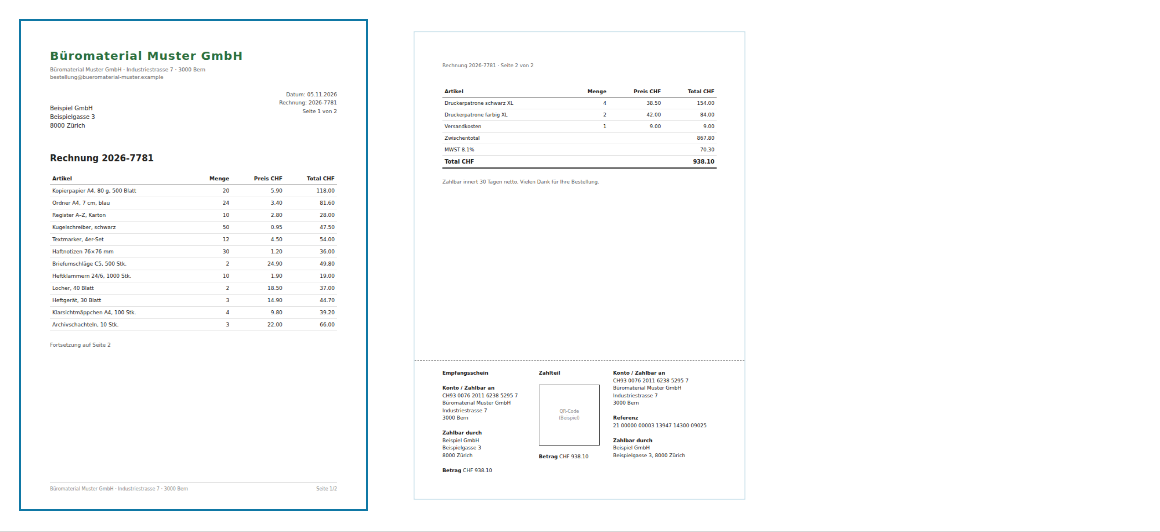
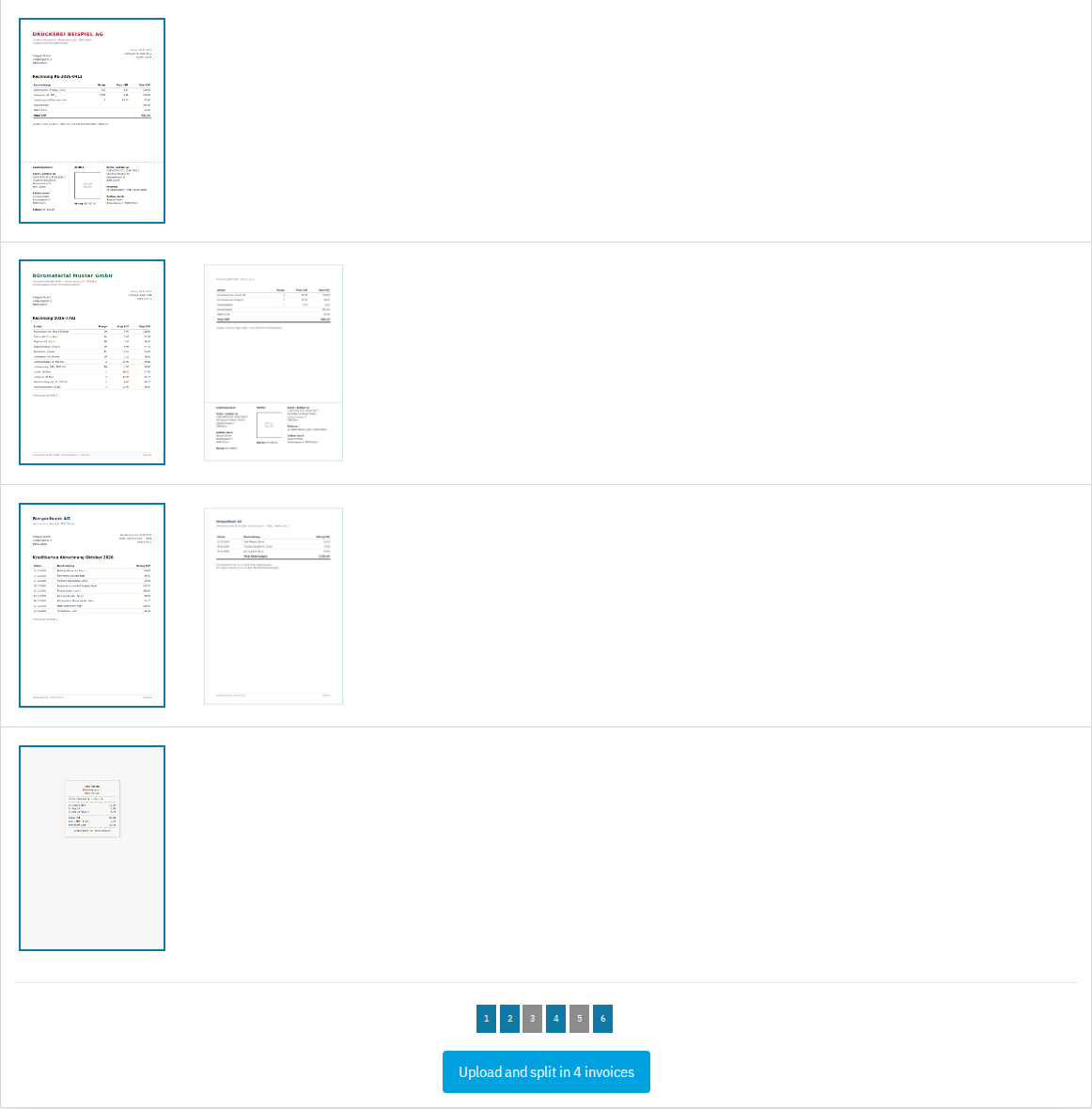
Kontera AI detects on which page a new document starts and marks these pages as first pages. The pages of one document share a row; the first page has a blue frame, the following pages do not.
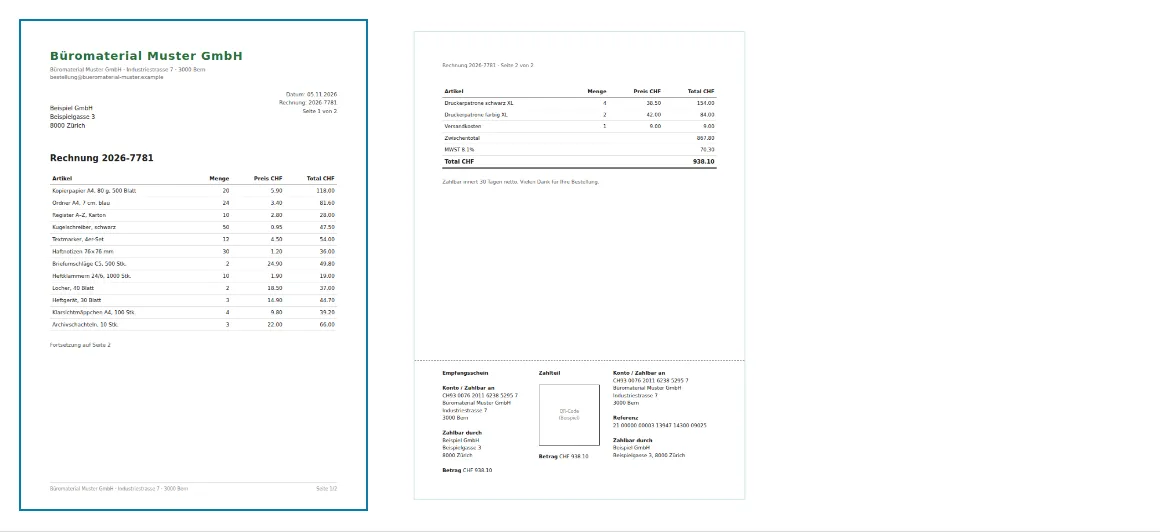
The second page belongs to the same document as the first. -
Adjust the split points
Clicking a page marks it as the first page of a new document or removes the mark again. The rows regroup right away.
-
Check the count and upload
Below the pages, a strip shows all page numbers; the first pages are highlighted. Check that the number of documents matches your stack. Then click “Upload and split in … invoices”. If only the first page is marked, the button reads “Upload as a single invoice”.
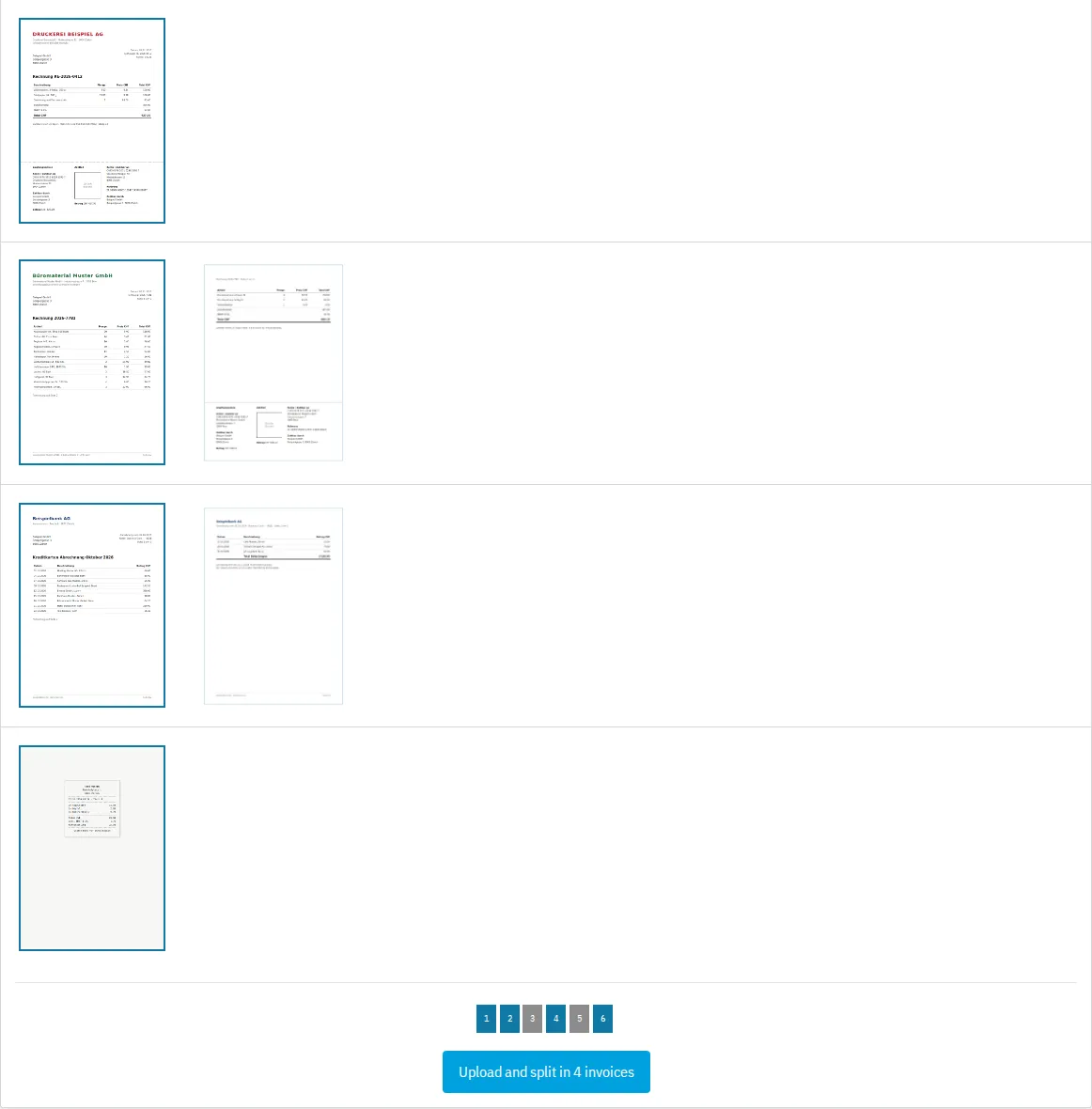
In the strip, first pages are blue and following pages gray. -
Documents are analyzed
Kontera creates a separate document from each part and analyzes it like any other uploaded document. “Ok” confirms the message. You then work on the new documents in .
Options
Section titled “Options”Zoom the preview in and out
Section titled “Zoom the preview in and out”The magnifier buttons above the pages change the size of the preview. Smaller, you see more pages at once and keep track of long PDFs; larger, you can read details such as the sender or the invoice number before you set a split point.
Split the file of an existing document
Section titled “Split the file of an existing document”If a document carries a PDF that actually contains several documents, split it straight from the work list: in , select exactly one document and click “Split…” under “Entry… (1)”. If the entry has several files, pick the right one in the “Choose document to split” dialog. “Split PDF” opens with this file, and you continue from step 2. The original document stays unchanged.