Download
In short
Section titled “In short”The document download collects the files of your exported documents in one ZIP file, for example for your own records or for an audit. You pick the period by invoice date, narrow it down to a bank account or credit card if needed, and decide how the files in the ZIP file are named.
Where to find it
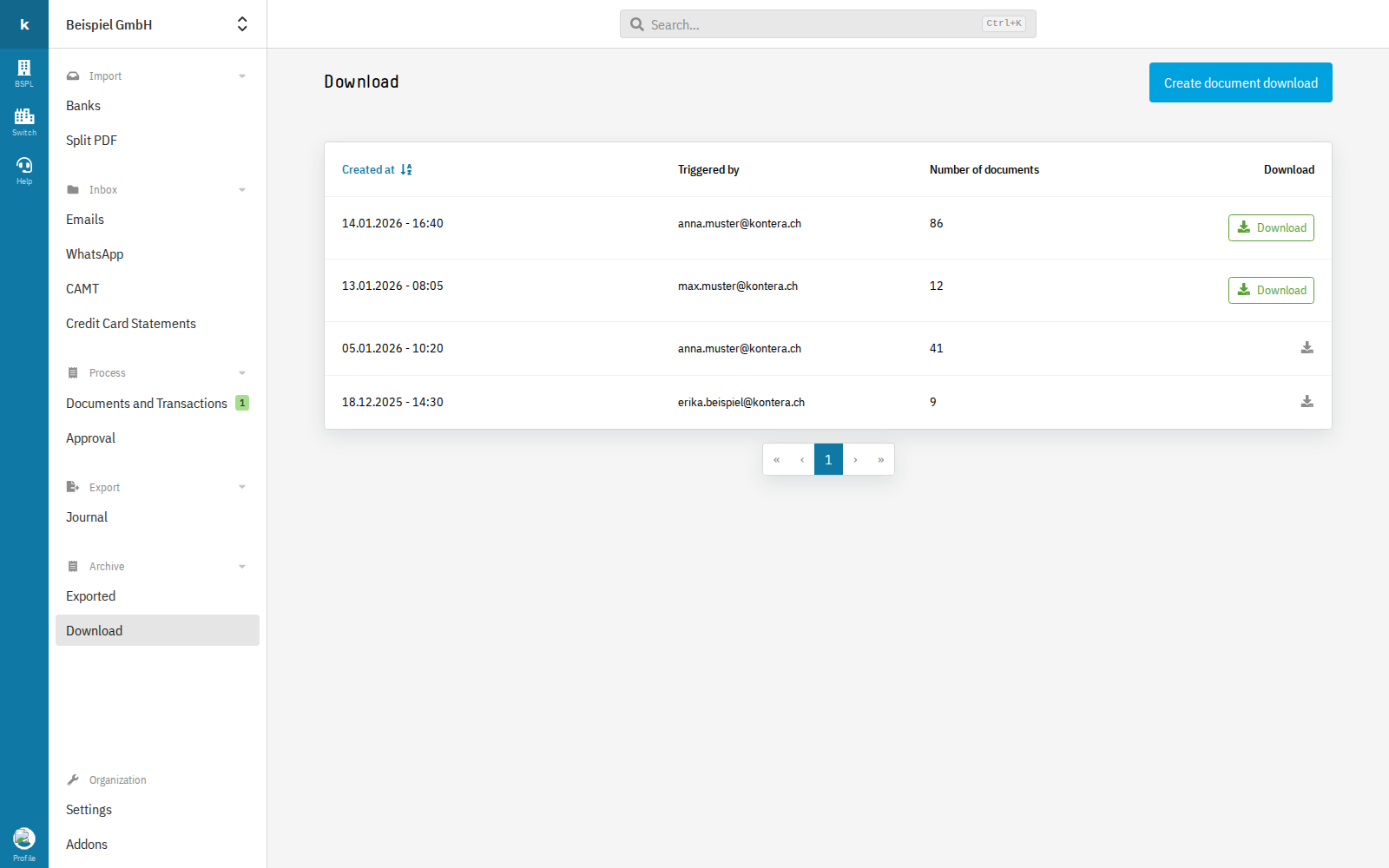
Section titled “Where to find it”opens the “Download” page. It lists the organization’s downloads, newest first: when each was created, who triggered it and how many documents it contains.
How it works
Section titled “How it works”-
Prepare a download
Click “Create document download”. In the “Prepare document download” window, set the period with “From document date” and “Until document date”. Kontera suggests January 1 of the previous year up to today.
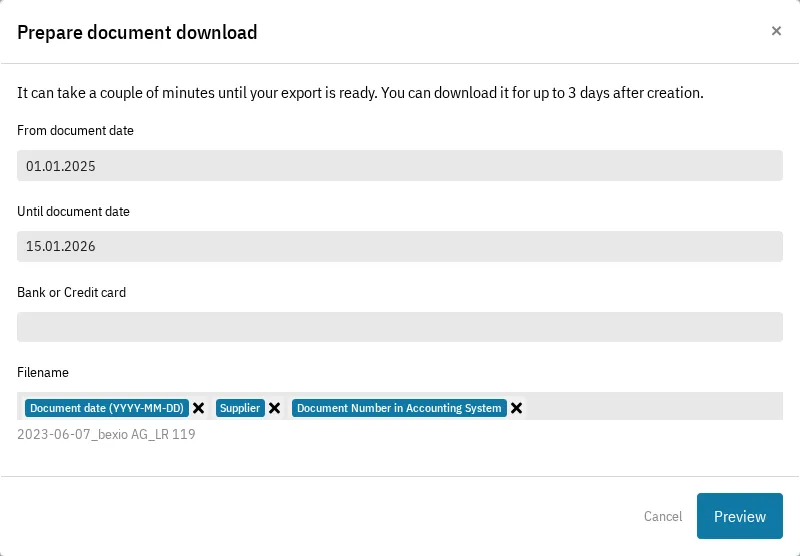
Below "Filename", an example shows how the files are named with the selected parts. -
Narrow the selection and set the file names
Under “Bank or Credit card” you limit the download to one account; without a selection only the period counts. Under “Filename” you put together the parts of the file names (see Options).
-
Check the preview
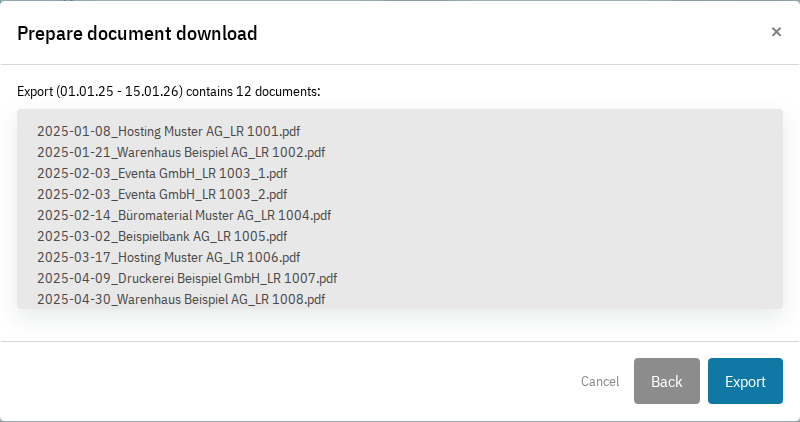
“Preview” shows how many documents the download contains and what each file will be called. “Back” takes you back to change the period, the account or the file names.
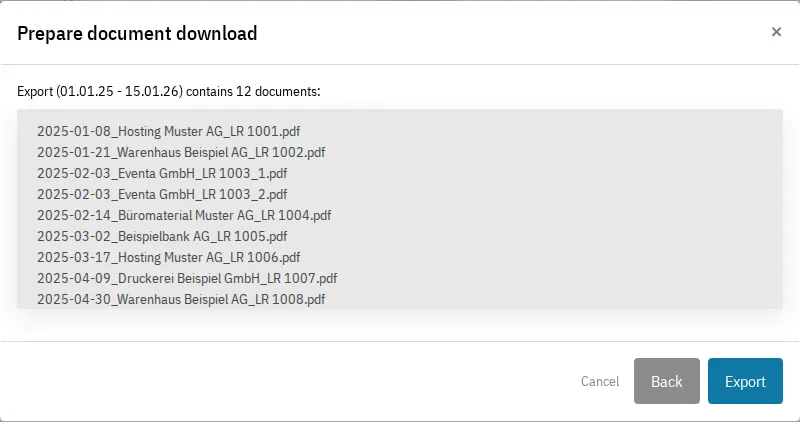
The list shows every file with the name it gets in the ZIP file. -
Create the download
“Export” closes the window and the download appears at the top of the list. While Kontera builds the ZIP file, the row shows a loading indicator. This can take a few minutes; once the file is ready, the list updates by itself.
-
Download the ZIP file
“Download” saves the ZIP file. A download is available for up to 3 days. After that it has expired, the row only shows a gray icon, and you create a new download if you need one.
Options
Section titled “Options”Which documents are included
Section titled “Which documents are included”The download contains the documents that have already been exported to the accounting system (status “Exported”) and whose invoice date lies within the selected period. All files of a document go into the ZIP file. Documents still being processed as well as deleted documents and files are not included.
Bank or credit card
Section titled “Bank or credit card”If you select a bank account or credit card under “Bank or Credit card”, the download only contains documents reconciled with a transaction of that account. This way you collect, for example, all documents for the transactions of one credit card.
Filename
Section titled “Filename”Under “Filename” you build the name of each file from parts, among them “Document date (YYYY-MM-DD)”, “Supplier”, “Document number”, “Document Number in Accounting System”, “Additional posting text”, “Original filename” and “Kontera ID”. Kontera joins the parts in the selected order with “_”; a part without a value is left out. Below the field you see an example.
- Kontera suggests “Document date (YYYY-MM-DD)”, “Supplier” and “Document Number in Accounting System”. For accounting systems with their own “Format for filenames”, that format applies instead.
- If a document has several files, Kontera appends a running number (“…_1.pdf”, “…_2.pdf”).
- With “Infoniqa via Albatross API”, “Infoniqa Doc ID” is available as an additional part.
Subscription
Section titled “Subscription”The document download is not part of every subscription. Without a matching subscription, the page shows examples of how the files in the ZIP file would be named and names the subscriptions that include the download. “Upgrade now” lets you change your subscription.