bexio Inbox
In short
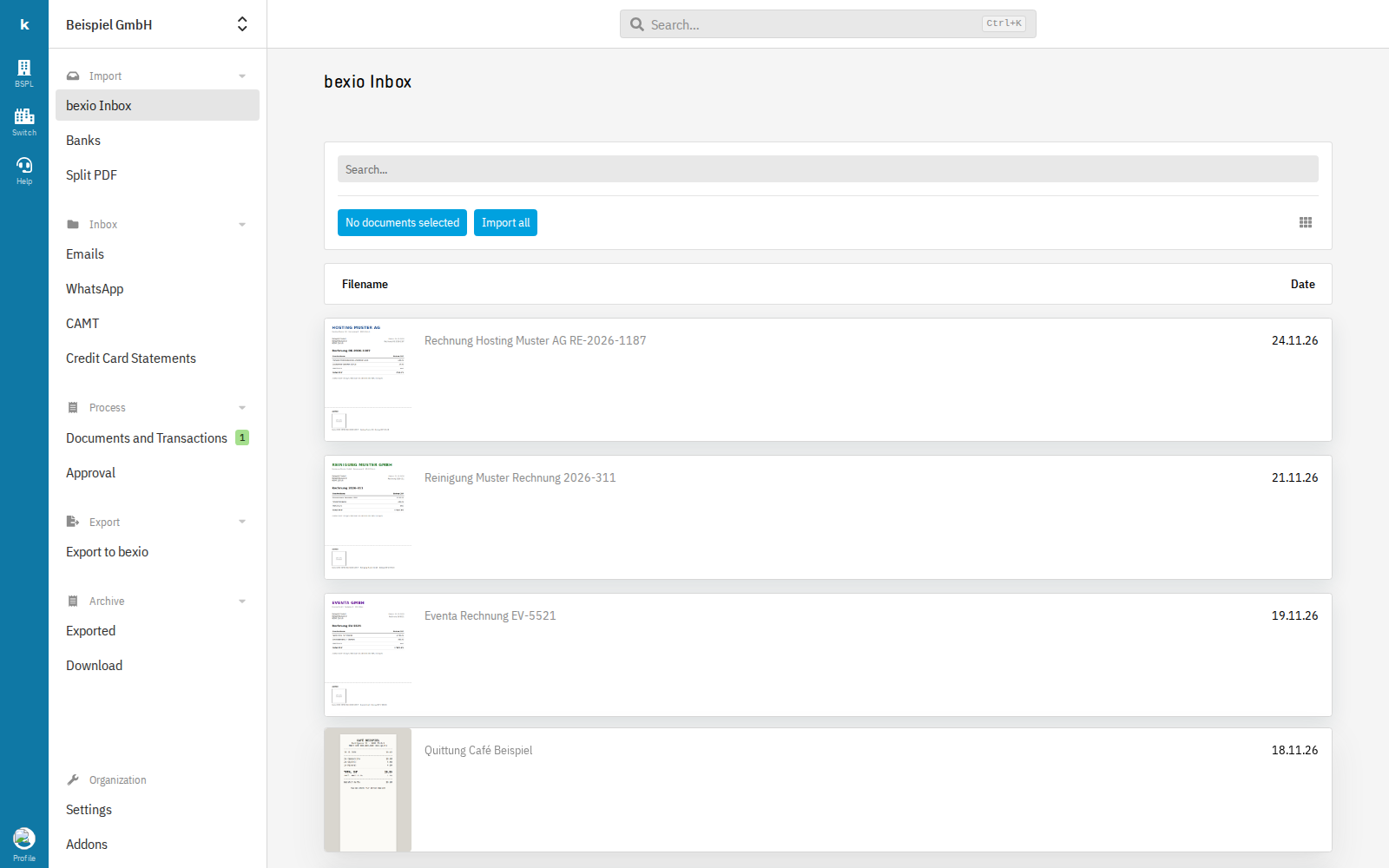
Section titled “In short”“bexio Inbox” shows the files that sit in your bexio inbox and are not archived yet. You choose which ones to take over, and Kontera creates a document from each file. Documents already filed in bexio reach Kontera without a detour through download and upload.
Where to find it
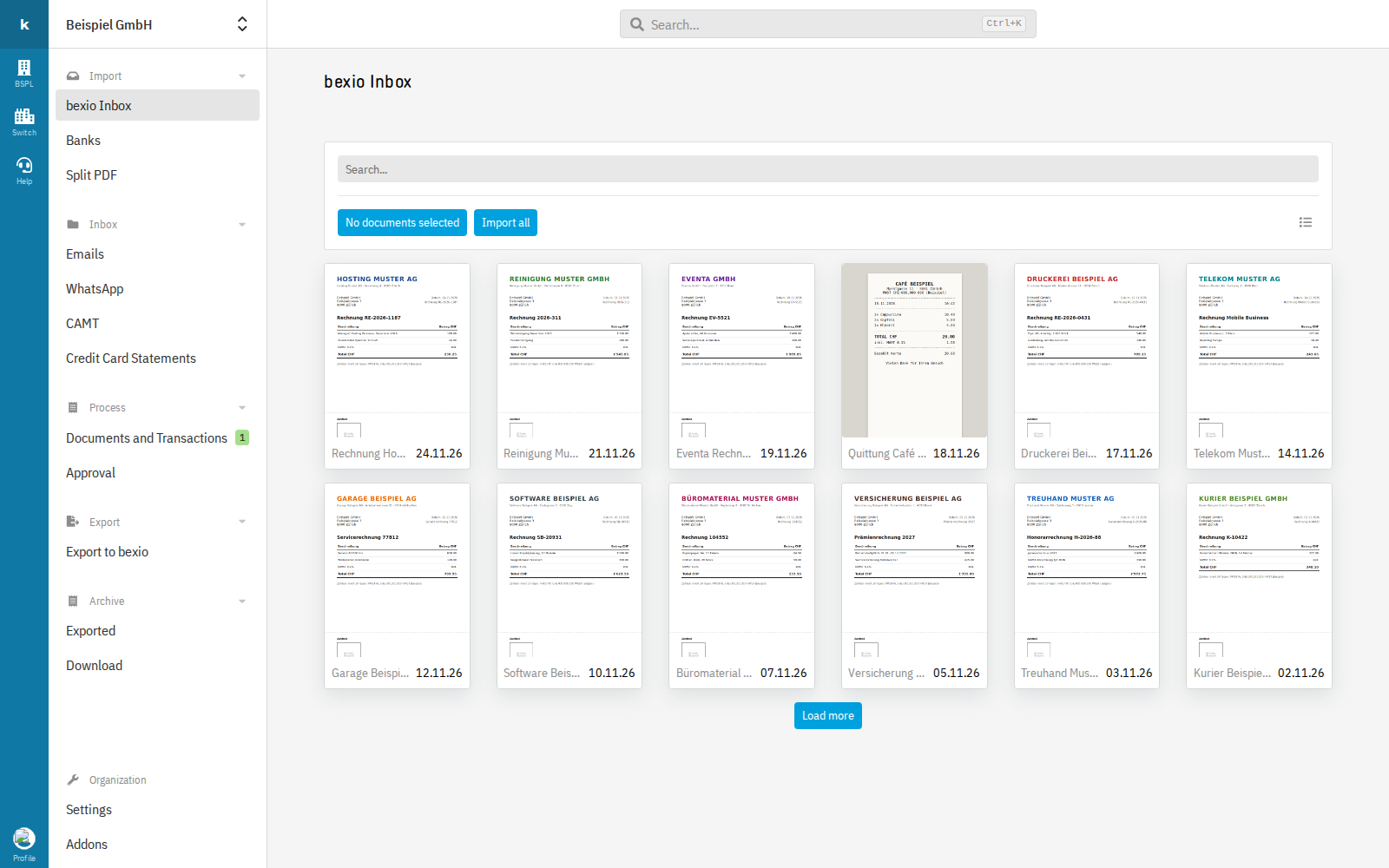
Section titled “Where to find it”lists the files from the bexio inbox, newest first. The entry only appears for organizations whose accounting system is bexio.
How it works
Section titled “How it works”-
Select files
Clicking a card selects the file; clicking it again removes the selection. Selected cards have a blue frame, and the first button shows how many files you selected, for example “Import 2 documents”. Without a selection it reads “No documents selected”.
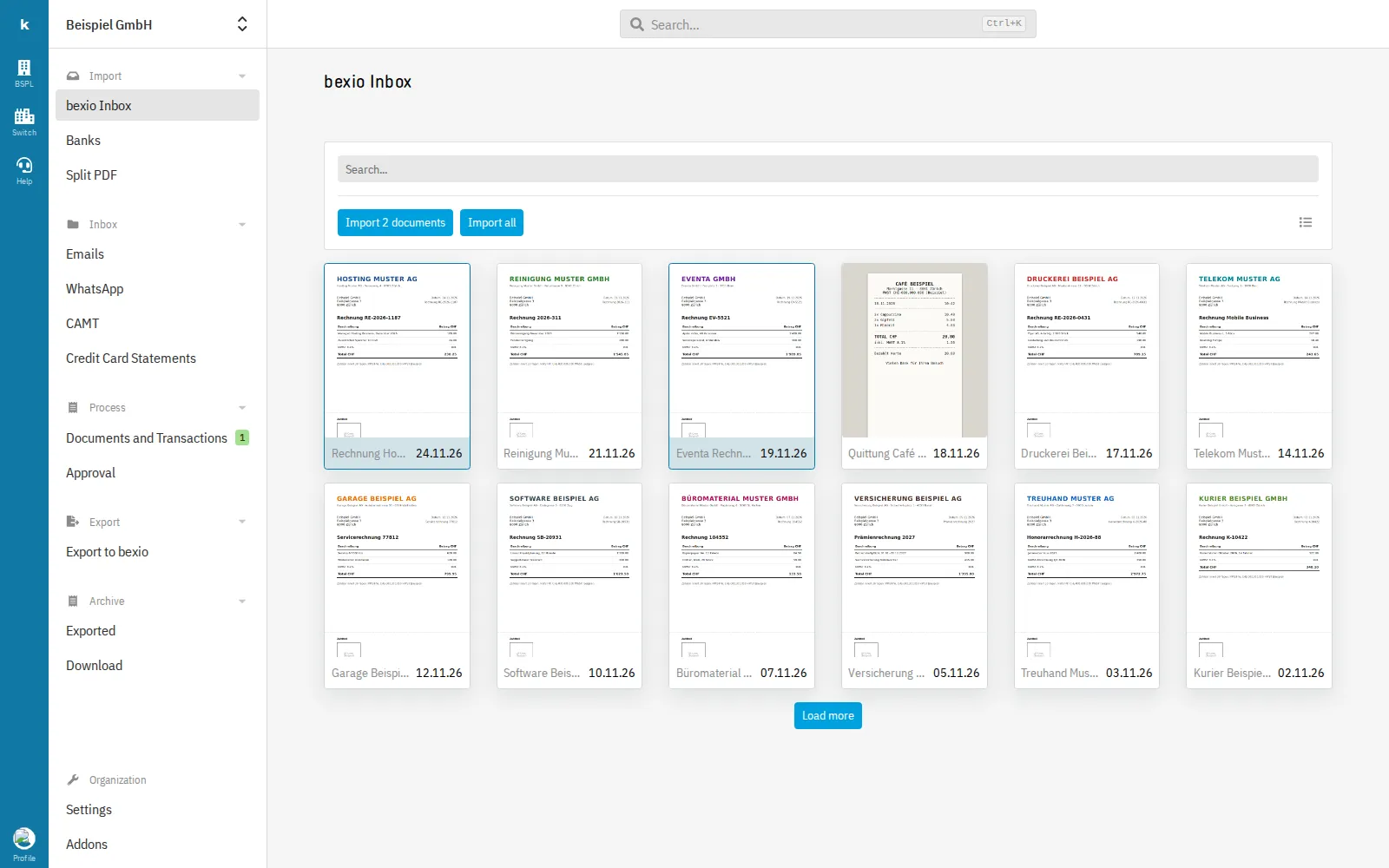
Selected files are highlighted in blue; the button shows how many. -
Import
“Import … documents” or “Import one document” starts the import. The cards read “Importing…” while Kontera loads the files from bexio. Afterwards the card is faded and marked with a green check mark (“Imported”); you can no longer select it.
-
Process the documents
Kontera creates a document from each imported file and analyzes it like any other uploaded document. You find the documents in . Imported files no longer appear in “bexio Inbox” the next time you open it.
-
Export to bexio
On export to bexio, Kontera attaches the original file from the bexio inbox to the entry instead of uploading it a second time, and archives it in bexio. This also clears the file from the bexio inbox.
Options
Section titled “Options”Import all
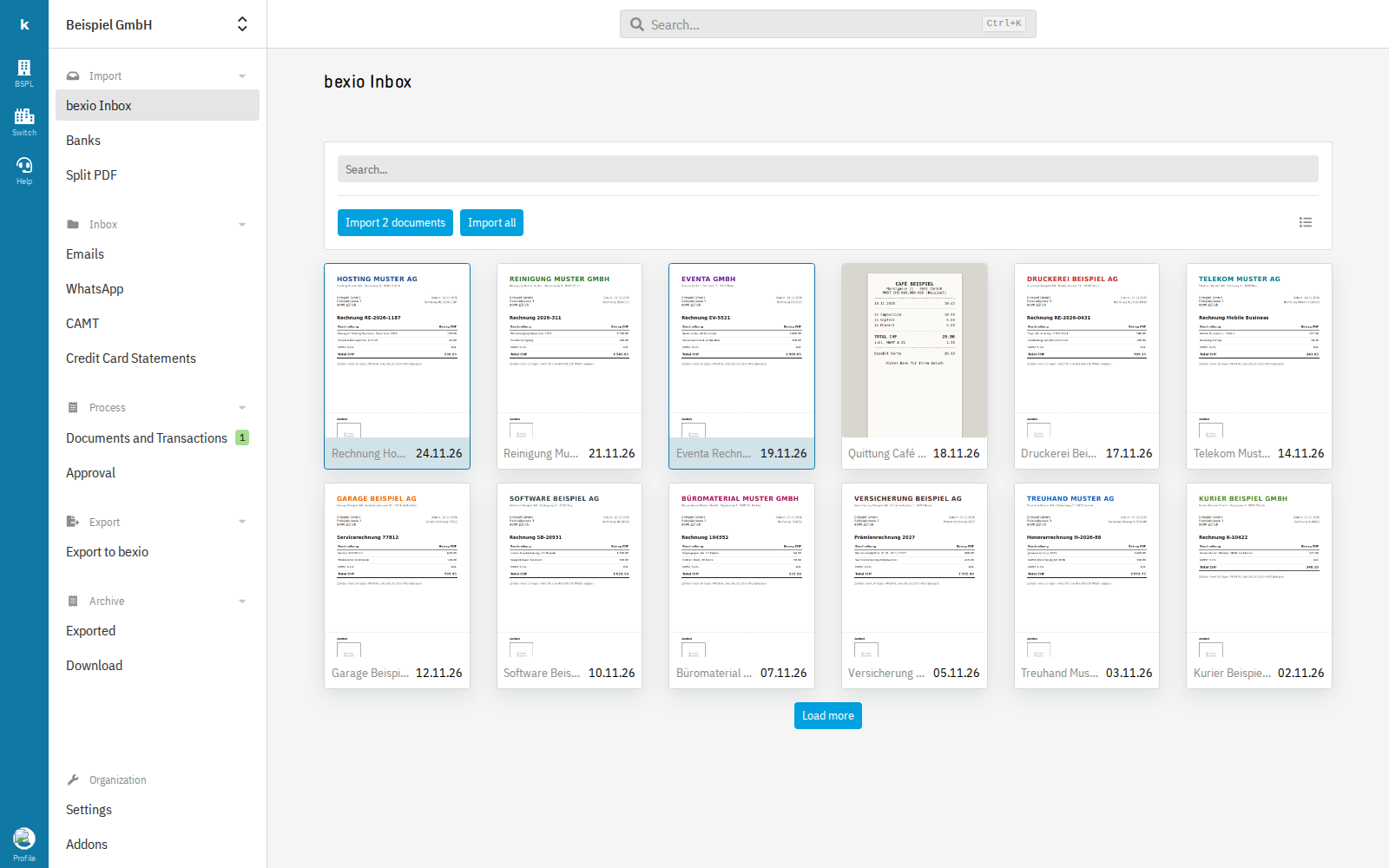
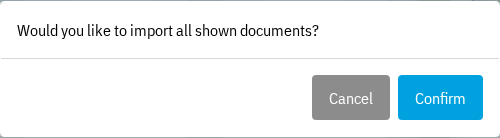
Section titled “Import all”“Import all” takes over every file currently shown – including the ones you loaded with “Load more”. Kontera asks first; “Confirm” starts the import, “Cancel” leaves everything as it is.
Search
Section titled “Search”In the “Search…” field you search by filename. Kontera searches all files in bexio that are not archived and shows only the matches.
Load more files
Section titled “Load more files”Kontera shows the files page by page. “Load more” below the list loads the next ones; once Kontera finds no further files, the button reads “No more documents”.
Card and list view
Section titled “Card and list view”The icon to the right of the import buttons switches between “View as cards” and “View as list”. In the list view, each file has its own row with “Filename” and “Date”, and long filenames are fully readable. Kontera remembers the view you chose.
Files Kontera does not take over
Section titled “Files Kontera does not take over”Kontera takes over files in PDF, JPG, PNG and HEIC format. Files in other formats are marked with a crossed-out eye (“Ignored”); they do not become documents. If bexio has no preview for a file, the card appears without a preview image.