Emails
In short
Section titled “In short”Every organization has its own inbox address. Whatever you or your contacts send to this address is taken over by Kontera: PDFs and images attached become documents that you then process. “Emails” shows every email received with its sender, subject and attachments, so you can see where Kontera could not take anything over.
Where to find it
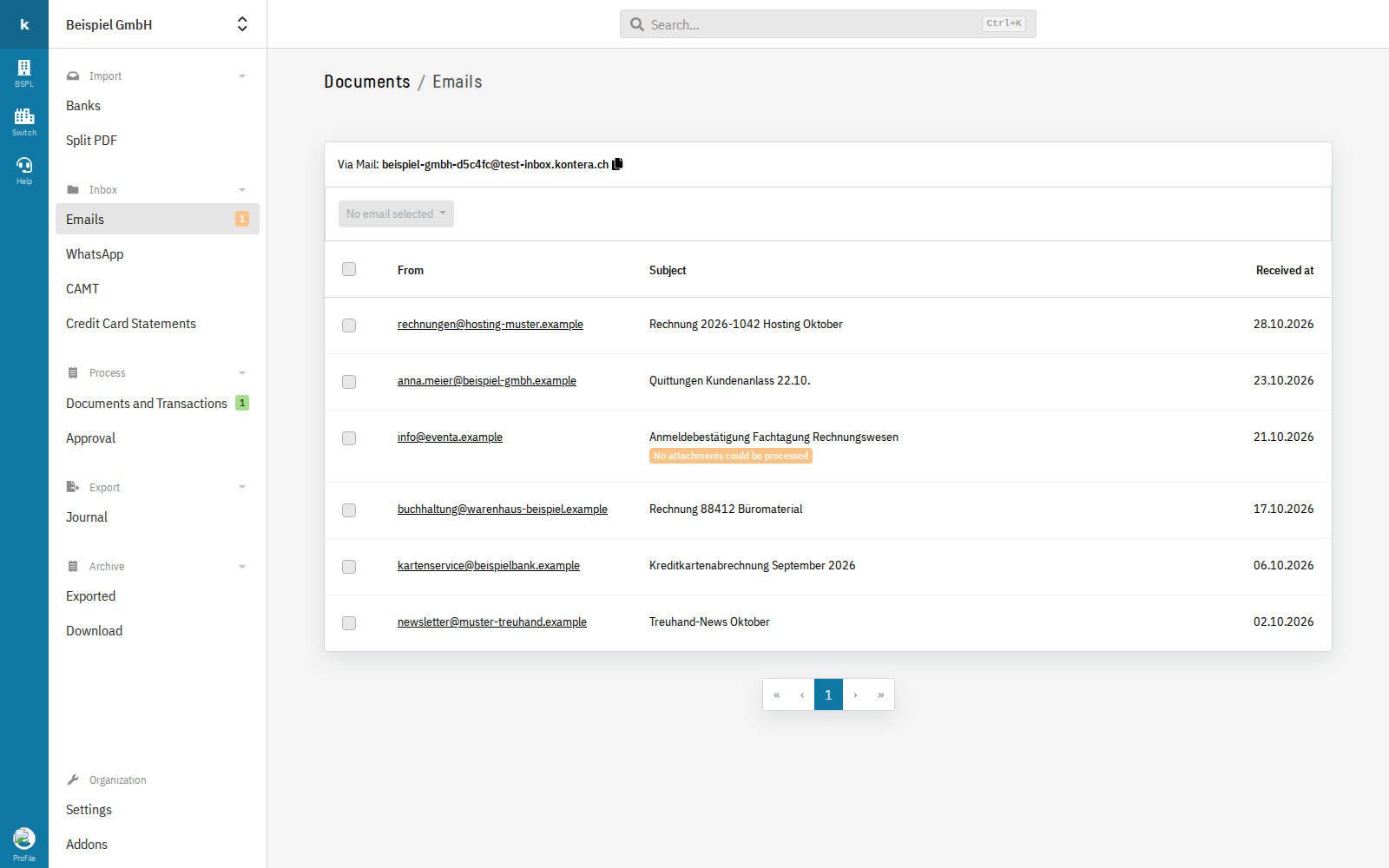
Section titled “Where to find it”lists every email sent to your organization’s inbox address, newest first. The orange number next to the entry is the count of emails from which Kontera could not process any attachment and whose notification has not been dismissed yet.
If your inbox has no “Emails” entry, open the “Email” tab under . It shows the same number, and the card with the inbox address leads to the list.
How it works
Section titled “How it works”-
Copy the inbox address
At the top of the list, the inbox address of your organization follows “Via Mail:”. Clicking the address copies it to the clipboard. You find the same address under “Settings → Company settings”.
-
Send documents to the address
Forward documents to the inbox address or give it to your contacts as the recipient address for their documents. Kontera takes over PDF, JPG, PNG and HEIC attachments, including those Outlook packs into a “winmail.dat” file. Each email then appears in the list with “From”, “Subject” and “Received at”.
-
Process the documents
From every attachment it takes over, Kontera creates a document and prepares it for processing (for the exception, see Create documents automatically). You find it under . In the document, the “Email” card shows which email it came from, with sender, subject and text.
-
Open an email
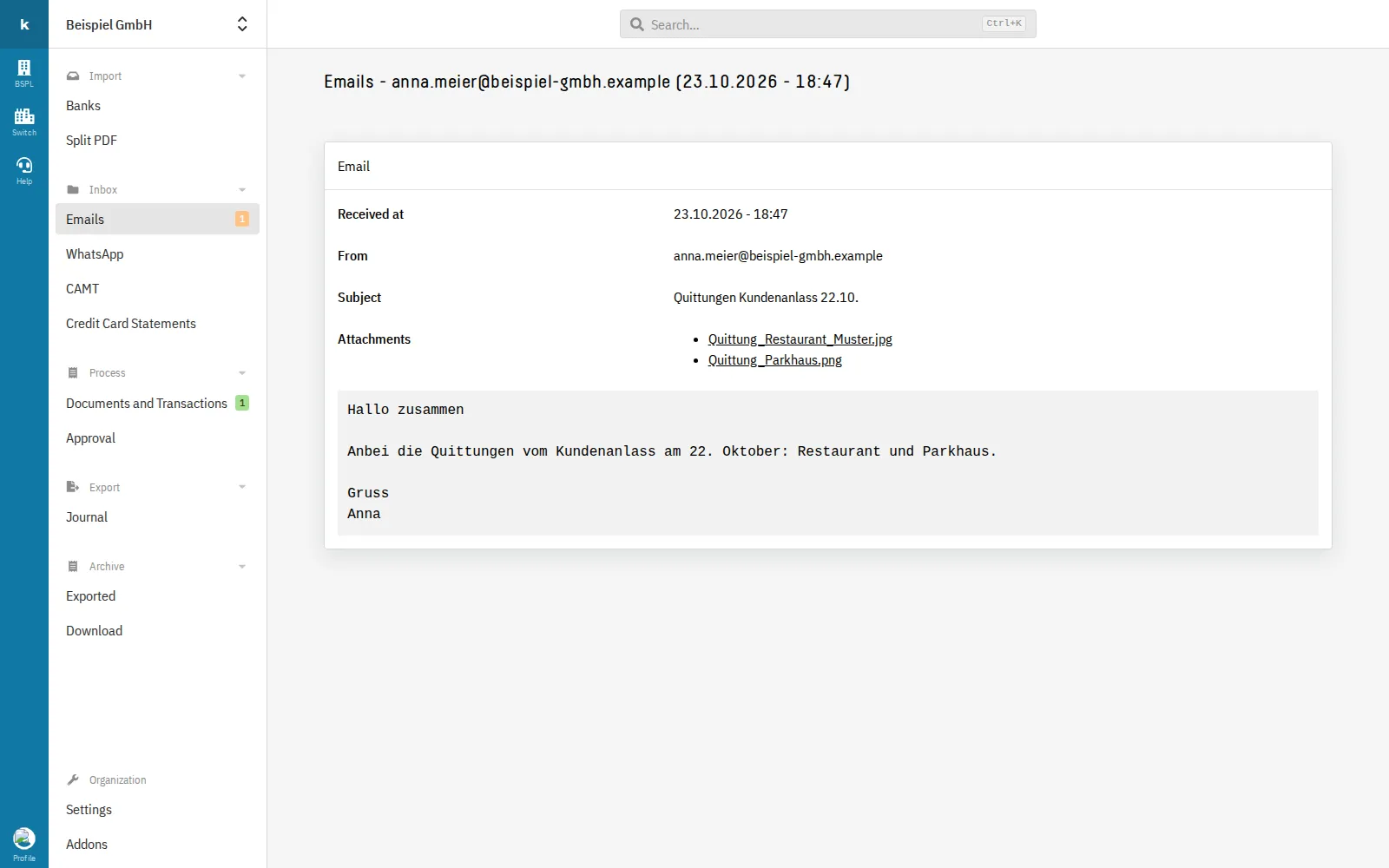
Clicking a row opens the email. “Attachments” lists the files taken over; each file name leads to the document. The text of the email follows below.
-
Clear notifications
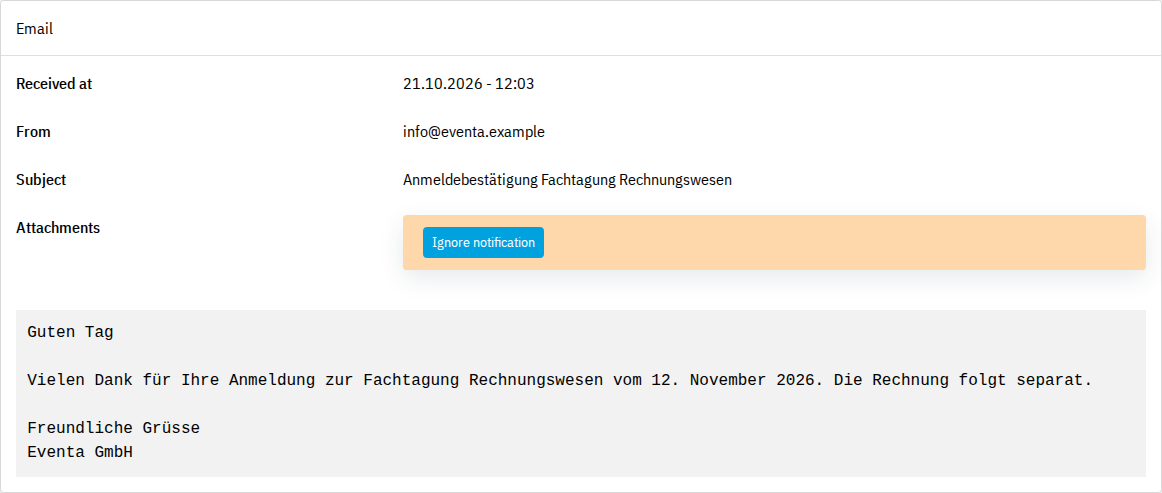
If Kontera could not take over any attachment from an email, the list marks it with “No attachments could be processed”. Open the email and check whether a document is missing – for example because the sender sent a link instead of a file. “Ignore notification” clears the notification, and the number next to “Emails” goes down.
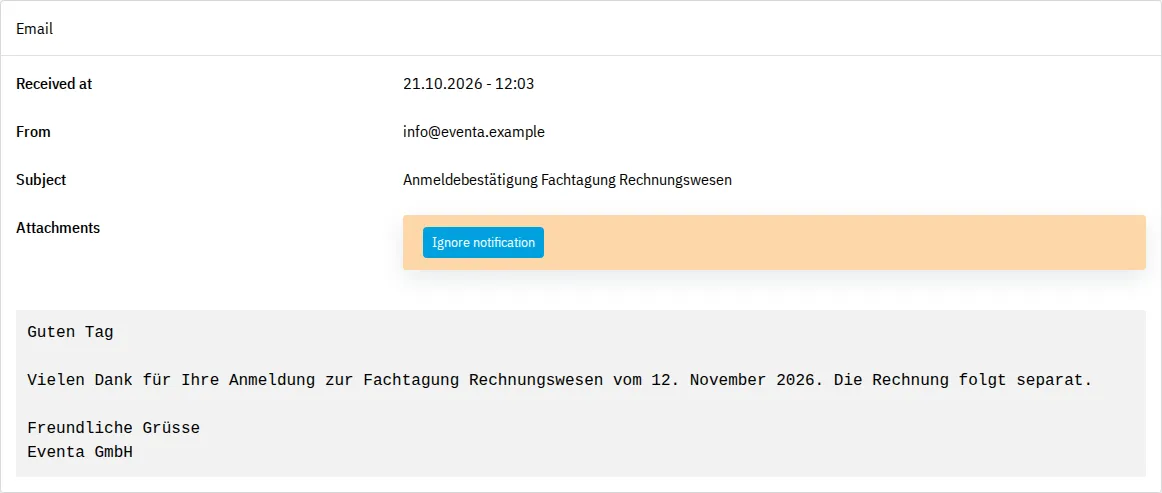
As long as the notification is open, the Ignore notification button appears under Attachments.
Options
Section titled “Options”Attachments Kontera does not take over
Section titled “Attachments Kontera does not take over”Kontera does not take over attachments in other formats, such as Word files, nor small images such as logos in email signatures. If Kontera has already received the same attachment several times within a few days, it does not take over further copies. An email that contains only such copies does not appear in the list.
Delete emails
Section titled “Delete emails”Select the emails with the checkboxes, open the selection at the top left (e.g. “2 emails selected”) and click “Delete email”. After you confirm with “Delete”, the emails are removed. Documents created from the attachments are kept. Deleting cannot be undone.
Create documents automatically
Section titled “Create documents automatically”If your inbox shows a “Documents” entry next to “Emails”, the top of the list offers the option “Process attachments as invoices”. When it is on, Kontera creates a document from every attachment right away. When it is off, the attachments stay under , and you decide there which ones to process.
Change the inbox address
Section titled “Change the inbox address”Under “Settings → Company settings”, the “Kontera inbox email address” field sets the part before the @. Letters, digits and hyphens are allowed, a hyphen not at the beginning or end. After the change, Kontera only accepts emails sent to the new address; update forwarding rules and the details your contacts use accordingly.